

Content
<div align="center">
<img src="assets/ClaudeR_logo.png" alt="ClaudeR Logo" width="150"/>
<h1>ClaudeR - The Modern Researcher's Toolkit</h1>
<p>
<b>Connect RStudio to Claude Code, Codex, Gemini CLI, or any MCP-based LLM agent for interactive coding, multi-agent orchestration, and automated manuscript auditing.</b>
</p>
<p>
<a href="https://opensource.org/licenses/MIT"><img src="https://img.shields.io/badge/License-MIT-blue.svg" alt="License: MIT"></a>
<a href="https://github.com/IMNMV/ClaudeR/pulls"><img src="https://img.shields.io/badge/PRs-welcome-brightgreen.svg" alt="PRs Welcome"></a>
<a href="https://github.com/IMNMV/ClaudeR/stargazers"><img src="https://img.shields.io/github/stars/IMNMV/ClaudeR?style=social" alt="GitHub stars"></a>
<br/>
<a href="https://github.com/IMNMV/ClaudeR/actions/workflows/ci.yml"><img src="https://github.com/IMNMV/ClaudeR/actions/workflows/ci.yml/badge.svg" alt="CI status"></a>
<a href="https://github.com/IMNMV/ClaudeR/commits/main"><img src="https://img.shields.io/github/last-commit/IMNMV/ClaudeR/main" alt="GitHub last commit"></a>
<a href="https://pypi.org/project/clauder-mcp/"><img src="https://img.shields.io/pypi/v/clauder-mcp" alt="PyPI version"></a>
<img src="https://img.shields.io/badge/R-%3E%3D4.0-blue?logo=r" alt="R version">
<a href="https://glama.ai/mcp/servers/IMNMV/ClaudeR"><img src="https://glama.ai/mcp/servers/IMNMV/ClaudeR/badges/score.svg" alt="ClaudeR MCP server"></a>
</p>
</div>
---
> **Heads up: a name change is coming.** Another R package already uses the name claudeR, so this package will be renamed in the next couple of weeks. Only the name will change. The tools, the installers, and your workflows stay exactly the same. Install instructions here will be updated the day it happens.
---
**ClaudeR** is an R package that forges a direct link between RStudio and MCP configured LLM agents like Claude Code or Codex. This allows interactive coding sessions where the agent can execute code in your active RStudio environment so it can see the executed code and any generated plots in real-time. If you need help editing a script, a quick analysis done, or an LLM to audit your statistical claims against any manuscript before submission: ClaudeR has got your back.
This package, additionally, allows multiple agents to work on one script, or it can make multiple RStudio windows siloed so multiple agents can operate independently on different datasets. It's also compatible with Cursor and any service that support MCP servers.
**Why this instead of the subscription tools?** Most paid "AI for researchers" products are workflow wrappers: a prompt, a free public API, and the same frontier models you already pay for through a CLI subscription. ClaudeR's answer is structural, beyond just price. The work happens in your live R session, where your actual data and models live, with a per-agent audit trail of every line executed, checkpoints that make any step reversible, and findings written back into your actual documents as Word comments. A web wrapper cannot offer any of that.
## Quick Start
```r
# Install
if (!require("devtools")) install.packages("devtools")
devtools::install_github("IMNMV/ClaudeR")
# Set up your AI tool
library(ClaudeR)
install_clauder() # For Claude Desktop / Cursor
install_cli(tools = "claude") # For Claude Code CLI
# Start the server in RStudio
claudeAddin()
```
> **AI agents:** See [llms-install.md](llms-install.md) for automated setup instructions.
<details>
<summary><b>Recent Updates</b> (click to expand)</summary>
- **Reviewer Zero now reasons, not just reconciles (R 0.12.4).** Added a mandatory Pass 5 (content reasoning) to the base auditing protocol. The deterministic tools (reconcile_values, verify_references, check_cross_references, probe_scripts) find numeric, reference, cross-reference, and code defects, but they do not reason about meaning, and a manuscript can clear every one of them and still be wrong. Pass 5 is a gated, equal-weight pass with eight checks the tools cannot do: instrument and source attribution, whether each reported test is computable from the data that exists, whether each cited figure or table actually contains the claimed evidence, magnitude wording, convergence across studies, causal and generality framing, data existence for descriptive claims, and supplement and appendix integration (every supplement cited, and no body claim resting on an uncited one). In a controlled benchmark on a synthetic manuscript with a known defect set, this raised detection from below a native-tools baseline (16.8 of 24) to clearly above it (21.3 of 24), recovering exactly the reasoning defects the old tool-led protocol was missing, with no rise in false positives.
- **Shared-connection identity, coordination visibility, and a stale-session guard (R 0.12.2 / clauder-mcp 0.14.2).** Three fixes from a live three-persona field session. (1) Personas sharing one MCP connection were renaming each other, because `set_agent_name` changes the identity of the whole connection. New `as_agent` parameter on `send_message`, `check_messages`, and `wait_for_message` acts as a named persona for one call, with a separate read cursor per name. The bridge now enforces the pattern: a second `set_agent_name` with a different name is refused unless forced, every send confirmation echoes the name it was sent as, and the agent intro states where the current identity came from. (2) Coordination messages bypass R by design, so the console and the Agents panel showed nothing while agents talked. The addin now echoes each new coordination event to the console in full (no truncation), appends it to the session log, and shows a live coordination roster with last-seen ages. (3) A bridge still pointed at a dead R session used to report "success" while writing to a coordination log no live agent reads. Coordination calls now fail loudly when no live session exists, and announce it when the connection re-binds to a different live session. Also from pilot 2: `check_cross_references` understands S-prefixed supplement numbering, and the audit protocol documents `unname()` for htest fields and author-plus-year citation matching.
- **Agent identity and cross-restart history (R 0.11.0 / clauder-mcp 0.13.0).** Built from field reports of a multi-day, three-agent session. New `set_agent_name` tool: an agent sets its working name (for example "Claude-Stasis") once, and execution history, message attribution, presence, and its read cursor all carry that name. This fixes the case where several agents or personas share one MCP connection and collapse into a single random id. `get_session_history` gains `include_past`: it parses prior session log files on disk, so the audit of who ran what now survives R restarts. The coordination protocol now makes identity the first step of check-in.
- **Researcher workflow release (R 0.10.0 / clauder-mcp 0.12.0).** Three workflows that paid tools charge for, built on machinery ClaudeR already had. (1) Systematic review screening: two independent AI screeners from different model families judge every abstract against your criteria, and the new `screening_report` tool computes agreement, Cohen's kappa, PRISMA flow counts, and the conflict set, so the human reads only the disagreements. (2) Grant Panel Mode: `grant_panel_prompt(rubric = "nih")` convenes a mock study section, one reviewer per criterion, anchored weaknesses, and a ranked list of revisions that would move the score. (3) Response to Reviewers: `reviewer_response_prompt()` parses a decision letter into a point-by-point registry, reruns analyses so answers carry real computed numbers, gates until every point is answered, and exports the response letter with `export_response_letter()` plus Word comments in the manuscript.
- **Coordination v2 + consensus gate (R 0.9.0 / clauder-mcp 0.11.0).** The multi-agent board is now a typed, append-only event log on disk, designed from field reports of real multi-hour multi-agent sessions: typed signals instead of prose-grepping, per-agent read cursors (the shared-dataframe race is structurally impossible), reply threading, lease-based task claims, a fact store for shared state, auto-stamped presence, and a `wait_for_message` tool that blocks until a partner's event arrives, without touching the busy R session. New consensus gate: after `propose_plan()`, every execution response carries an agreement banner until all agents run `confirm_agreement()` with the required sentence verbatim. Only then is the plan marked approved. Plus `referee_prompt(stance = "reviewer2")`: a hostile-but-fair Reviewer 2 that opens with an unprimed three-sentence read (central claim, and would a strong venue accept it?) and ranks findings fatal / must-fix / minor, each tagged to the study it concerns.
- **Referee Mode v2: configurable reviewers (R 0.8.0).** `referee_prompt()` now takes `lenses` (run any subset), `reviewers_per_lens` (2 = adversarial prosecutor + verifier pairs, 3 adds a backwards reader), `model` (a tier for all subagents, e.g. `"haiku"` for quick passes or `"opus"` for submission-grade, or a named per-lens vector), and `cross_vendor = TRUE` to dispatch logic/methods reviewers to a different model vendor via codex/agy/qwen one-shots. Anti-collapse rules are now mandatory in the protocol: reviewer prompts must be written from scratch per lens and stance, the consistency lens reads back-to-front, and every finding carries a corroboration count across independent reviewers.
- **Referee Mode (R 0.7.0 / clauder-mcp 0.10.0).** The substantive manuscript review that paid services charge ~$50 a pass for, running free on the subscription you already have, and delivered where it belongs: as Word comments in your manuscript. `reviewer_zero_prompt(referee = TRUE)` (or standalone `referee_prompt()`) runs five content-only review lenses (argument logic, methods, internal consistency, evidence presentation, framing) as parallel subagents where the CLI supports them. Every finding must anchor to a verbatim quote and survive an independent verification pass before it lands in the document, severities are kept honest, and a clean report on a sound paper is a valid outcome. Alongside it, the new `check_cross_references` tool deterministically catches dangling references ("see Table 4" when Table 4 no longer exists) and tables or figures the text never mentions.
- **Value-first auditing (R 0.6.0 / clauder-mcp 0.9.0).** Built from field feedback after a full manuscript+supplement audit. `read_file` now transparently extracts `.docx`/`.pdf` (previously returned raw bytes), and the extractor preserves structure: headings marked, table cells emitted row-wise with separators (they were previously dropped entirely). New `reconcile_values` tool: enumerates every number in a manuscript and reconciles each against the corpus your code produced, respecting displayed precision (5038.5 matches 5038.46), commas, percents, scientific notation, and `< .001` thresholds. The per-value `values_registry` makes numeric completeness a construction, not a diligence hope. Reviewer Zero now sets audit-clean print options (no more tibble 3-sig-fig false alarms), gates on the value sweep, and takes final verdicts from clean-room runs via `probe_scripts(capture_output = TRUE)`. CrossRef lookups retry with backoff instead of silently truncating the reference check on 429s.
- **Researcher toolkit release (R 0.5.0 / clauder-mcp 0.8.0).** Five additions aimed at getting papers out the door. (1) Reviewer Zero write-back: `reviewer_zero_prompt(writeback = TRUE)` turns every flagged claim into a native Word comment in a copy of the manuscript, via the new `annotate_manuscript()`. (2) Citation upgrades: `verify_references` now flags retracted/corrected papers using Crossref update notices, resolves arXiv IDs (with a cite-the-published-version check), and bibliographically matches DOI-less references. New `search_citations` (OpenAlex) and `get_bibtex` (doi.org) tools mean agents look up citations instead of inventing them. (3) `generate_notebook`: session logs become narrated Quarto lab notebooks that re-run the analysis when rendered. (4) `generate_codebook`: one call produces the variable-level codebook plus package/script/output inventory that OSF and journals require. (5) All wired into CI.
- **Session checkpoints (R 0.4.0 / clauder-mcp 0.7.0).** Three new MCP tools: `checkpoint_session` snapshots the R global environment to disk, `restore_session` rolls it back (saving the current state first, so restores are undoable), and `list_checkpoints` shows what's available. Agents are briefed to checkpoint before risky operations. Users can always recover from the console with `ClaudeR::restore_session()`.
- **Reviewer Zero: preregistration audits and robustness checks.** `reviewer_zero_prompt(prereg_path = ...)` appends a Pass 5 that audits the executed analysis against the preregistered plan and produces a complete deviation report. `reviewer_zero_prompt(robustness = TRUE)` appends a Pass 6 that runs a specification-curve analysis on the primary claims: defensible alternative specs fan out through background jobs and come back as a sensitivity table plus a specification curve.
- **Deep-dive audit release (R 0.3.1 / clauder-mcp 0.6.2).** 20+ bug fixes across the addin, bridge, and Lab Mode: reopened addin UIs now share live state with the running server (settings toggles work again after closing/reopening the UI), plot capture is device-aware (`png(); plot(); dev.off()` can no longer resend a stale on-screen figure), `modify_code_section` no longer corrupts replacements containing backslashes, async job results are idempotent and survive bridge timeouts, error responses include everything printed before the error, one agent's long computation no longer tells other agents the addin is down, and Lab Mode's Round-2+ re-verification gate actually fires. Session tokens now come from OS entropy. Logging is on by default. CI (GitHub Actions) now guards every push: R functional checks plus a real MCP stdio handshake against the built bridge.
- **mcp SDK pinned to 1.x.** The MCP 2026-07-28 spec release shipped `mcp` 2.0.0 to PyPI, which removes the server API the bridge is built on. `clauder-mcp` >= 0.6.1 pins `mcp<2`. If your bridge broke, run `uvx --refresh clauder-mcp`. SDK 2.0 migration (and the new Tasks extension for async tools) is planned.
- **AI-Driven Data Annotation.** Two new MCP tools (`load_annotation_data`, `annotate`) let an agent label a CSV dataset row by row without writing any code. Define annotation fields in a `_schema` column, call `data_annotation_prompt()` to get the protocol, and the agent handles the rest. The original file is never modified and sessions resume automatically if interrupted.
- **Multi-Agent Coordination Protocol.** Built-in protocol for multiple agents sharing one RStudio session. Agents negotiate through a shared message board in the R environment, agree on a task plan, claim tasks before working, and cross-check each other's output. Load it with `multi_agent_prompt()`.
- **`verify_references` tool.** Extracts DOIs from a manuscript's bibliography, queries the CrossRef API for each, and returns metadata (title, authors, year, journal) for comparison against manuscript claims. Non-resolving DOIs, metadata mismatches, and references without DOIs are flagged. Works standalone ("check my references") or as Pass 4 of Reviewer Zero.
- **R Best Practices Protocol.** Built-in statistical analysis protocol covering EDA, assumption checking, model building, diagnostics, multiple-corrections, and reporting. Load it with `r_best_practices_prompt()` or tell the agent to read it.
- **Reviewer Zero: Automated Academic Audits.** Now a 4-pass protocol for AI-driven manuscript verification. The agent extracts every statistical and methodological claim, verifies its extraction, recomputes values against the author's R code, and checks references via CrossRef. Methodological claims (e.g., "zero variance made testing impossible") are tested directly rather than accepted at face value. Run `reviewer_zero_prompt()` to get the full protocol.
- **`clean_error_log` tool.** Point the agent at a session log and it will parse every code block, find errors, check whether a fix follows each one, then strip the error blocks and any duplicate code that preceded them. The result is a clean log with only the working code. Accepts an optional `output_path` to write to a separate file instead of overwriting the original.
- **Persistent server across UI restarts.** Closing the Shiny addin (console stop or Done button) no longer kills the MCP server. Re-running `claudeAddin()` reconnects to the still-running server with the correct port, session name, and execution count. Only clicking "Stop Server" in the UI actually stops the server.
- **Descriptive log filenames.** Log files now include the session name, port, and timestamp: `clauder_default_8787_20260301_143022.R`. A new log file is created each time you click Start Server. All subsequent code execution appends to that file.
- **Viewer content capture & `insert_text` tool.** Two new tools: `get_viewer_content` reads HTML from interactive widgets (plotly, DT, leaflet) with pagination so agents can inspect htmlwidget output without blowing up context. `insert_text` inserts text at the cursor position or a specific line/column in the active document. During agent execution, htmlwidgets open in the browser instead of stealing the Shiny addin's viewer pane.
- **Multi-session routing fix.** Agents now prefer the session named "default" when multiple sessions are active, preventing misrouting caused by non-deterministic discovery order. Once bound, agents stay sticky to their session. Non-default agents should call `connect_session` to target a specific session.
- **Reproducibility metadata in logs.** When logging is enabled, each new session log starts with a header containing the date, working directory, and full `sessionInfo()` output (R version, platform, attached packages). Anyone who receives the log can see exactly what environment the code ran in.
- **Export clean script.** Click "Export Clean Script" in the Shiny addin to strip all timestamps, agent labels, and log headers from a session log, producing a runnable `.R` file with just the code. Error blocks are preserved as comments. Also available programmatically via `export_log_as_script()`.
- **PyPI package (`clauder-mcp`).** The Python MCP bridge is now available as a standalone package on PyPI. Run it with `uvx clauder-mcp` for zero-config setup with no Python path or pip install needed. The installers (`install_cli()` and `install_clauder()`) default to uvx, with a `use_uvx = FALSE` fallback for legacy setups.
- **`read_file` tool.** Agents can now read any text file from disk (.R, .qmd, .csv, .log, etc.) without it being open in RStudio. Enables session continuity workflows: point an agent at a previous log file and tell it to pick up where the last session left off.
- **Codex CLI support.** `install_cli(tools = "codex")` generates the setup command for OpenAI Codex. Codex joins Claude Code and Gemini as a supported CLI agent.
- **Multi-agent orchestration.** Run multiple AI agents on the same R session or spread them across separate RStudio windows. Each agent gets a unique ID on startup. Console output, log files, and execution history are all attributed per agent, so you always know who did what. On its very first tool call, each agent receives a context briefing with its own ID, any other agents active on the session, and the log file path, giving it full awareness of the shared environment without any manual setup. Agents can call `get_session_history` to review what other agents have done, or read the shared log file directly. The Shiny viewer tracks connected agents in real-time.
- **Session discovery.** Each RStudio session writes a discovery file to `~/.claude_r_sessions/` on startup. AI agents find sessions automatically with no hardcoded ports. Name your sessions (e.g. "analysis", "modeling") and run them on different ports. When multiple sessions exist, agents automatically route to the session named "default". Non-default agents should call `connect_session` to bind to their target session. Single-session setups work with zero config.
- **Redesigned Shiny viewer.** Cleaner UI with grouped panels for Session, Agents, Logging, and Advanced settings. Shows connected agents and execution count in real-time. Click the `?` button for a built-in guide on multi-session setup and agent identity.
- **Non-blocking async execution.** `execute_r_async` now runs long-running code in a separate R process via `callr`, keeping the main session fully responsive. Other agents can continue working while a job runs. The agent writes self-contained code (explicitly saving/loading data via `saveRDS`), submits it, and polls with `get_async_result`. No environment copying and no memory doubling, only the data the job needs gets serialized.
- **Stale plot detection.** Fixed a bug where the last generated plot image would persist and re-appear on every subsequent `execute_r` call, even when no new plot was created.
- **Reduced plot token usage.** Plot capture now uses smaller dimensions (600x400, dpi 100) to reduce base64 image size and avoid token overflow errors.
- **MCP tool annotations.** All tools now include `readOnlyHint`, `destructiveHint`, and `idempotentHint` annotations per the current MCP spec.
- **Hardened string escaping.** `escape_r_string` now handles backticks, carriage returns, tabs, and null bytes. Applied to task tool inputs to prevent injection.
- **Fixed `install_cli()` command syntax.** Updated to use `--transport stdio` flag and `--` separator for current Claude Code CLI. Now removes stale MCP registrations before adding fresh ones, preventing issues when upgrading R versions.
</details>
## Demo
| Single agent via Claude Desktop App | Multi-agent: Codex + Claude Code via CLI | GPT 5.4 Codex: Data analysis + Quarto report |
|:---:|:---:|:---:|
| [](https://youtu.be/KSKcuxRSZDY) | [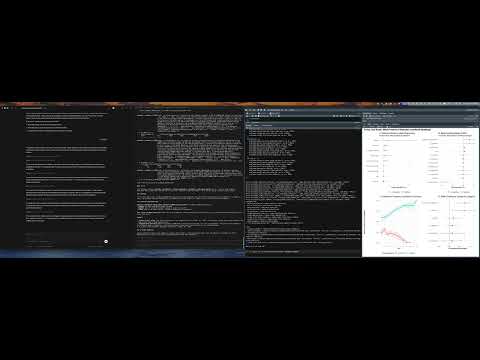](https://youtu.be/5ZMyfR6ZvYU) | [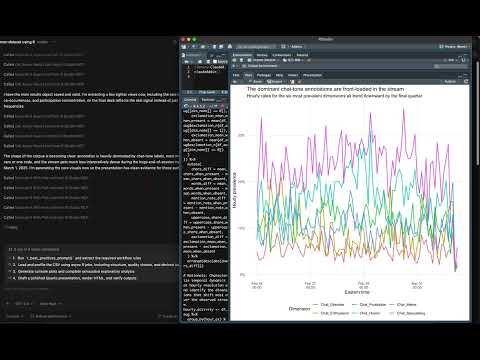](https://youtu.be/TE-U8DPlShY) |
## Table of Contents
- [Quick Start](#quick-start)
- [Features](#features)
- [How It Works](#how-it-works)
- [Reviewer Zero](#reviewer-zero-automated-academic-audits)
- [R Best Practices Protocol](#r-best-practices-protocol)
- [Multi-Agent Coordination Protocol](#multi-agent-coordination-protocol)
- [AI-Driven Data Annotation](#ai-driven-data-annotation)
- [Systematic Review Screening](#systematic-review-screening)
- [Grant Panel Mode](#grant-panel-mode)
- [Response to Reviewers](#response-to-reviewers)
- [CLI Integration](#cli-integration)
- [Security Model](#security-model)
- [Installation](#installation)
- [Usage](#usage)
- [Logging Options](#logging-options)
- [Example Interactions](#example-interactions)
- [Important Notes](#important-notes)
- [Troubleshooting](#troubleshooting)
- [Limitations](#limitations)
- [License](#license)
- [Contributing](#contributing)
## Features
ClaudeR empowers your AI assistant with a suite of tools to interact with your R environment:
- **`execute_r`**: Execute R code and return the output.
- **`execute_r_with_plot`**: Execute R code that generates a plot that the model can see.
- **`execute_r_async`**: Execute long-running R code asynchronously (>25 seconds). Returns a job ID for polling.
- **`get_async_result`**: Poll for the result of an async job. Includes a built-in delay to throttle polling.
- **`list_sessions`**: List all active RStudio sessions the agent can connect to.
- **`connect_session`**: Connect to a specific RStudio session by name for multi-session workflows.
- **`get_session_history`**: View execution history filtered by agent ID.
- **`read_file`**: Read any file from disk (.R, .qmd, .csv, .log, etc.) without needing it open in RStudio. Manuscripts are handled transparently: `.docx` and `.pdf` are extracted as structured text with headings marked and table cells kept separated. Supports `start_line`/`end_line` pagination for large files.
- **`check_cross_references`**: Deterministic internal-reference integrity: flags dangling mentions ("see Table 4" with no Table 4) and tables/figures never referenced in the text.
- **`annotate_manuscript`** (R function, used by the audit protocols): writes findings into a copy of a `.docx` as native, anchored Word comments, so authors can accept/dismiss the audit inside Word.
- **`reconcile_values`**: The audit backbone. Extracts every numeric value from a manuscript and reconciles each against the numbers your code actually produced (logs, outputs, tables), respecting displayed precision, commas, percents, scientific notation, and `< .001` thresholds. Returns a per-value registry so nothing can be silently skipped.
- **`get_active_document`**: Get the content of the active document in RStudio.
- **`get_r_info`**: Get information about the R environment.
- **`modify_code_section`**: Modify a specific section of code in the active document.
- **`insert_text`**: Insert text at the current cursor position or a specific line/column in the active document.
- **`get_viewer_content`**: Read HTML content from the viewer pane (plotly, DT, leaflet widgets) with pagination support.
- **`clean_error_log`**: Clean a session log by removing error blocks and their duplicate predecessors, leaving only working code and the fixes that followed.
- **`search_project_code`**: Search for a regex pattern across project source files (.R, .Rmd, .qmd). Returns file, line number, and snippet.
- **`probe_scripts`**: Source R scripts in a clean background session and report what objects are created (names, classes, dimensions) without affecting your main session.
- **`verify_references`**: Verify academic references: DOIs are checked against CrossRef (with retraction/correction flags from Crossref update notices), arXiv IDs are resolved with a published-version check, and DOI-less entries get bibliographic matching with candidate DOIs.
- **`search_citations`**: Search the OpenAlex scholarly index for the correct reference for a claim (title, authors, year, venue, DOI, citation count) instead of citing from memory.
- **`get_bibtex`**: Fetch the canonical BibTeX entry for a DOI via doi.org content negotiation.
- **`generate_notebook`**: Turn a session log into a narrated Quarto lab notebook. Rendering re-runs the code so outputs and plots regenerate.
- **`generate_codebook`**: Scan a project and emit the codebook OSF and journals require: versioned package list, script inventory, per-variable summaries (class, n, missingness), and outputs produced.
- **`annotate_manuscript()`** (R function, driven by Reviewer Zero's write-back step): inject audit findings into a .docx as native Word comments the author can accept or dismiss.
- **`screening_report`**: Summarize systematic-review screening passes. Computes agreement and Cohen's kappa between two model screeners, the PRISMA flow counts, and the conflict set a human must adjudicate.
- **`send_message` / `check_messages` / `wait_for_message` / `coordination_roster`**: Typed multi-agent messaging on an append-only shared log. `wait_for_message` blocks until a matching event arrives (rendezvous without polling), and everything works even while the R session is busy executing another agent's code.
- **`checkpoint_session`**: Snapshot the R global environment to disk before risky operations. Checkpoints survive R restarts.
- **`restore_session`**: Roll the environment back to a checkpoint. The current state is saved first, so a restore is itself undoable. Also callable from the console (`ClaudeR::restore_session()`) when you need to recover from an agent mistake yourself.
- **`list_checkpoints`**: List saved checkpoints for the current session.
- **`create_task_list`**: Generate a task list based on your prompt to prevent omissions in long-context tasks.
- **`update_task_status`**: Track progress for each task in the generated list.
With these tools, you can:
- **Direct Code Execution**: The AI can write, execute, and install packages in your active RStudio session.
- **Feedback & Assistance**: Get explanations of your R scripts or request edits at specific lines.
- **Visualization**: The AI can generate, view, and refine plots and visualizations.
- **Data Analysis**: Let the AI analyze your datasets and iteratively provide insights.
- **Multi-Agent Workflows**: Run Claude Desktop, Claude Code, and Gemini CLI on the same R session simultaneously. Each agent is uniquely identified, and they can see each other's work through shared history and log files.
- **Long-Running Analysis**: Async execution handles model fitting, simulations, and large data processing without timing out.
- **Code Logging**: Save all code executed by the AI to log files for future reference. Every entry is tagged with the agent that ran it.
- **Console Printing**: Print the AI's code to the console before execution.
- **Environment Integration**: The AI can access variables and functions in your R environment.
- **Dynamic Summaries**: Summaries can dynamically pull results from objects and data frames to safeguard against hallucinations.
- **Quarto Renders**: The AI can create and render Quarto presentations. For best results, ask for a .qmd file and for it to be rendered in HTML when it's finished.
- **Reviewer Zero**: A built-in protocol for automated academic auditing. The AI reads a manuscript block-by-block, extracts every statistical claim into a registry, verifies its extraction, then recomputes each claim against the author's R code. Run `reviewer_zero_prompt()` for the full protocol. See the [Reviewer Zero](#reviewer-zero-automated-academic-audits) section below.
## Reviewer Zero: Automated Academic Audits
ClaudeR includes a built-in protocol for AI-driven technical review of academic manuscripts. The AI acts as "Reviewer Zero": systematically verifying that every p-value, coefficient, and confidence interval in your paper matches the code that produced it.
**How it works (core protocol):**
1. **Extract**: The AI reads your manuscript block-by-block with paginated `read_file` (`.docx` and `.pdf` are extracted with structure preserved, including table cells), pulling every quantitative and methodological claim into a structured registry (a data.frame visible in your RStudio Environment pane). Audit-clean print options are set first, so console output can never truncate the precision being checked.
2. **Verify**: The AI re-reads the source lines for each claim to confirm it didn't misread values. No code runs until every claim is verified.
3. **Reconcile & Recompute**: The backbone is the value sweep: `reconcile_values` enumerates *every* numeric value in the manuscript and supplement and reconciles each against the corpus of numbers your code actually produced, at the document's displayed precision. Every unmatched value must be recomputed or explained before the audit may proceed: completeness by construction, not by diligence. Claim-level recomputation then runs against clean-room script outputs (`probe_scripts` with output capture), so a stale object in your session can never make a check agree spuriously. Methodological claims (e.g., "zero variance made testing impossible") are tested directly rather than accepted at face value.
4. **References**: `verify_references` checks every DOI against CrossRef and flags metadata mismatches, non-resolving DOIs, and **retracted or corrected papers**. arXiv preprints are resolved and matched against published versions. DOI-less references get bibliographic matching. In-text citations are cross-checked against the bibliography.
**Optional extensions**, composable via arguments (examples below): a preregistration deviation audit (`prereg_path`), a specification-curve robustness check (`robustness`), write-back of every finding as Word comments (`writeback`), and **Referee Mode** (`referee`, or standalone `referee_prompt()`), a substantive review of the reasoning itself: argument logic, methods, internal consistency, evidence presentation, and framing, run by parallel reviewer subagents with configurable model tiers, adversarial stances, and cross-vendor dispatch, with a deterministic `check_cross_references` pass and delivery as anchored Word comments.
**To get started:**
```r
# Print the full protocol prompt to give to your AI agent
reviewer_zero_prompt()
# Optional Pass 5: audit the analysis against your preregistration.
# Produces a deviation report (followed / disclosed deviation /
# undisclosed deviation / not executed) plus a list of exploratory
# analyses that are not labelled as such.
reviewer_zero_prompt(prereg_path = "prereg.docx")
# Optional Pass 6: specification-curve robustness check. The agent
# enumerates defensible alternative analysis choices for the primary
# claims, runs the grid in background jobs, and reports a sensitivity
# table plus a specification curve.
reviewer_zero_prompt(robustness = TRUE)
# Optional write-back: every flagged claim becomes a native Word comment
# in a copy of the manuscript, so you can accept/dismiss findings in Word.
reviewer_zero_prompt(writeback = TRUE)
# All extensions together
reviewer_zero_prompt(prereg_path = "prereg.docx", robustness = TRUE, writeback = TRUE)
# Referee Mode, configured. Quick-and-dirty pass on a fast model tier:
referee_prompt(model = "haiku")
# Submission-grade: strongest tier, adversarial reviewer pairs per lens
# (prosecutor + verifier), and lenses dispatched across model vendors
# (codex/agy/qwen) so same-model blind spots can't hide the same flaw twice:
referee_prompt(model = "opus", reviewers_per_lens = 2, cross_vendor = TRUE)
# Mix tiers per lens: deep model where the reasoning is hard, fast elsewhere
referee_prompt(model = c(logic = "opus", methods = "opus", consistency = "haiku"))
```
The protocol works with `.docx`, `.pdf`, `.qmd`, `.Rmd`, `.tex`, or plain text manuscripts and supports multi-script R projects.
## R Best Practices Protocol
ClaudeR comes with a built-in statistical analysis protocol inspired by the modeling workflows I learned from my statistics courses and refined through oof moments from using AI agents in real statistical work. The goal is to steer models with natural language to reproducible, theory-driven analysis which covers EDA, assumption checking, model building, diagnostics, multiple-corrections, and reporting.
```r
# Print the full protocol to give to your AI agent
r_best_practices_prompt()
```
You can also just tell the agent to run `ClaudeR::r_best_practices_prompt()` and it will read the protocol itself.
## Multi-Agent Coordination Protocol
When two or more agents share the same RStudio session, they need a way to divide work without stepping on each other. Coordination v2 runs on a typed, append-only event log on disk, shared by the R session and every agent's bridge: typed signals instead of prose conventions, per-agent read cursors (so no agent can clobber another's state), `to:` addressing with reply threading, lease-based task claims, a latest-wins fact store for shared state, presence stamped by every write, and `wait_for_message` so an agent can block until its partner's signal arrives instead of polling. The log survives R restarts.
The centerpiece is the **consensus gate**: when an agent proposes a plan with `propose_plan()`, every code-execution response in the session carries a banner demanding explicit agreement until every agent has run `confirm_agreement()` with a required sentence, verbatim. Agents cannot talk past each other into conflicting work: the plan is only marked approved when all parties have confirmed they read each other's position and agree.
```r
# Print the full protocol to give to your AI agents
multi_agent_prompt()
```
You can also just tell the agents to run `ClaudeR::multi_agent_prompt()` and they will read the protocol themselves.
## AI-Driven Data Annotation
ClaudeR includes a purpose-built annotation workflow for labelling CSV datasets with an AI agent. The agent works through the dataset row by row using two dedicated MCP tools, with no code required on the agent's end.
**CSV format:** add a `_schema` column to your file and define the annotation fields in the first row using a simple type syntax:
```
text,label,confidence,_schema
"Some text","","","label:choice[positive,negative,neutral];confidence:float[0,1]"
"More text","","",""
```
Supported types: `choice[a,b,c]`, `float[min,max]`, `int[min,max]`, `bool`, `text`
**Running an annotation session:**
```r
# Print the full protocol to give to your agent
data_annotation_prompt()
```
Or tell the agent to run `ClaudeR::data_annotation_prompt()` and it will read the protocol itself. The agent then calls `load_annotation_data` to start and `annotate` to label each row. The original file is never modified, and sessions are automatically resumable if interrupted.
## Systematic Review Screening
Title and abstract screening is the slowest part of a systematic review. Two humans normally read every record. ClaudeR replaces the bulk reading with two independent AI screeners and leaves the human only the disagreements.
The workflow: export your deduplicated database search to a CSV, add your inclusion and exclusion criteria as a `_schema` column, and run `run_annotation_job` twice with two different model families (for example Claude and a free local ollama model). Then:
```r
# Agreement, Cohen's kappa, PRISMA counts, and the conflict set
screening_report("pass_claude_annotating.csv", "pass_qwen_annotating.csv")
```
The report gives you percent agreement, Cohen's kappa between the screeners, the PRISMA flow numbers, and a `screening_conflicts` data frame holding only the records the two models disagreed on. You adjudicate those, typically a small fraction of the total. Every decision carries a reason, so the audit trail answers "why was this record excluded" with one filter. Print the full protocol with `screening_prompt()`.
## Grant Panel Mode
A mock study section for your grant before the real one meets. One reviewer subagent per criterion, honest scores, and every weakness anchored to a quote from your proposal.
```r
grant_panel_prompt(rubric = "nih") # Significance, Investigators, Innovation,
# Approach, Environment, scored 1 to 9
grant_panel_prompt(rubric = "nsf") # Intellectual Merit and Broader Impacts
```
The chair synthesis ends with the part that matters: a ranked list of concrete revisions that would move your score, each phrased as something you can do this week. Findings can be written into a copy of the proposal as Word comments.
## Response to Reviewers
The revise-and-resubmit workflow, compressed. Give the agent the decision letter and your manuscript, and run `reviewer_response_prompt()`. The agent parses the letter into individual reviewer points, locates each point in your manuscript, and drafts a point-by-point response. Where a reviewer asks a data question, the agent reruns the analysis in your live session, so the answer contains real computed numbers rather than recalled ones. A gate blocks completion until every point has a drafted response.
The deliverables: a formatted response letter via `export_response_letter()` (markdown, plus .docx when pandoc is installed), and your manuscript annotated with a Word comment at each spot that needs an edit, tagged with the reviewer point it answers.
## How It Works
ClaudeR uses the **Model Context Protocol (MCP)** to create a bidirectional connection between an AI assistant and your RStudio environment. MCP is an open protocol from Anthropic that allows the AI to safely interact with local tools and data.
Here's the workflow:
1. The Python MCP server acts as a bridge.
2. The AI sends a code execution request to the MCP server.
3. The server forwards the request to the R add-in running in RStudio.
4. The code executes in your R session, and the results are sent back to the AI.
This architecture ensures that the AI can only perform approved operations through well-defined interfaces, keeping you in complete control of your R environment.
## CLI Integration
ClaudeR supports command-line interface (CLI) agents: the **Claude Code CLI**, the **OpenAI Codex CLI**, the **Qwen Code CLI**, the **Google Antigravity CLI** (`agy`), and the legacy **Google Gemini CLI** (which shuts down June 18, 2026, with `agy` as its replacement). This is ideal for developers who prefer a terminal-based workflow, allowing you to interact with your AI assistant directly from the command line while maintaining a live connection to your RStudio session.
## Security Model
ClaudeR is a **supervised power tool**. The agent executes R code in your live RStudio session, the same session where your data and variables live. You should review what it does, just as you would review a colleague's code before running it.
### Server authentication
Binding to `127.0.0.1` is **not** a security boundary. Any other process on your machine can post code to the port, and so can any webpage you visit, via a cross-origin POST that browsers send without a CORS preflight. Either one is arbitrary code execution in your R session. ClaudeR has two defences:
- **Origin block (always on).** Any request carrying an `Origin` header is rejected with a 403. Only browsers set `Origin`, and the MCP bridge never does, so this closes the drive-by-webpage vector with no configuration and no compatibility cost.
- **Session token (opt-in).** On **Start Server**, ClaudeR mints a random token and writes it to the discovery file (mode `0600`, readable only by you). The bridge reads it and echoes it back as `X-Clauder-Token`. Tick **Require auth token** under *Advanced* to reject every request that lacks it. This closes the local-process vector too.
The token is **off by default** because enforcing it rejects any bridge older than `clauder-mcp` 0.6.0, which would break existing installs on upgrade. To turn it on:
```bash
uvx --refresh clauder-mcp # get a bridge that sends the token
```
Then tick **Require auth token** in the addin's Advanced panel and restart the server. Until you do, the addin prints a one-time console notice when a token-less bridge connects.
### Guardrails (not a sandbox)
`validate_code_security()` rejects the obvious footguns: `system()`, `system2()`, `shell()`, `rstudioapi::terminal`, and recursive/wildcard deletes. Treat this as a **seatbelt, not a sandbox**. It is a regex blocklist and it is trivially bypassable by design (`get("system")(...)`, `do.call`, `eval(parse(...))`, and so on). It is there to catch careless generation, not a determined agent. The agent's job is to run arbitrary R, so there is no version of this that is airtight.
### What ClaudeR does NOT restrict
The agent can read any file you can read, install packages, overwrite objects in your environment, make network calls, and consume compute. These are necessary for it to be useful. So:
- **Use logging** (enabled by default) for a full record of every line executed and which agent ran it.
- **Work in a project directory** to limit what the agent sees by default.
- **Review before trusting**: especially for Reviewer Zero audits, treat the output as a draft that you verify.
### Prompt injection: read this before auditing someone else's manuscript
ClaudeR deliberately combines three things: an agent that can **execute arbitrary R**, tools that pull in **untrusted third-party content** (`read_file`, `get_viewer_content`, `verify_references`, `load_annotation_data`), and an R session that can **write files and reach the network**.
That combination means a manuscript, CSV, or HTML widget authored by someone else is untrusted input on a path to code execution. Reviewer Zero's whole premise (point the agent at a paper you did not write) is exactly the risky shape. A document containing text aimed at the *model* rather than the reader can redirect what the agent does.
No filter fixes this, because running code is the feature. Mitigate by treating agent sessions over third-party documents as you would running a stranger's script: do it in a project directory, keep logging on, read the log, and don't leave credentials lying around in the working directory or environment.
> Restrictions apply only to code executed by the AI. Your manually executed R code is unaffected.
## Installation
### Step 1: Install ClaudeR from GitHub
Run this command in your RStudio console:
```R
if (!require("devtools")) install.packages("devtools")
devtools::install_github("IMNMV/ClaudeR")
```
### Step 2: Run the Correct Installer
Choose the option that matches your workflow.
#### Option A: For Desktop Apps (Claude Desktop / Cursor)
This function configures the MCP config file automatically for desktop applications. By default it uses `uvx` to run the `clauder-mcp` PyPI package, which handles all Python dependencies automatically.
```R
# Load the package
library(ClaudeR)
# Run the installer for Claude Desktop
install_clauder()
# Optional: For Cursor users
# install_clauder(for_cursor = TRUE)
```
For users who cannot use `uvx` (e.g. restricted environments), fall back to the legacy Python path method:
```R
library(ClaudeR)
install_clauder(use_uvx = FALSE, python_path = "/path/to/your/python")
```
#### Option B: For CLI Tools (Claude Code / Codex / Gemini)
This non-interactive function generates the exact command or JSON configuration needed for your CLI tool.
```R
library(ClaudeR)
# For Claude Code CLI
install_cli(tools = "claude")
# For OpenAI Codex CLI
install_cli(tools = "codex")
# For Qwen Code CLI
install_cli(tools = "qwen")
# For Google Antigravity CLI (agy, Gemini CLI's replacement)
install_cli(tools = "agy")
# For Google Gemini CLI (legacy, shuts down June 18, 2026)
install_cli(tools = "gemini")
```
For users who cannot use `uvx`, fall back to the legacy Python path method:
```R
install_cli(tools = "claude", use_uvx = FALSE, python_path = "/path/to/my/python")
```
After running the function, you must **manually apply the configuration**:
- **For Claude / Codex / Qwen**: Copy the command printed in the R console and run it in your terminal.
- **For Antigravity (agy)**: Copy the generated JSON into `~/.gemini/config/mcp_config.json` (global) or `.agents/mcp_config.json` (per-workspace).
- **For Gemini (legacy)**: Copy the generated JSON and manually add it to your `~/.gemini/settings.json` file.
After setup, **quit and restart** any active Desktop Apps or terminal sessions for the new settings to load.
> **Note**: If you upgrade R versions, re-run `install_cli()` or `install_clauder()` to update the MCP server path. The CLI installer automatically removes stale registrations before adding fresh ones.
## Usage
### Part 1: In RStudio
For **all** workflows, you must first start the ClaudeR server from RStudio.
```r
library(ClaudeR)
claudeAddin()
```
The ClaudeR add-in will appear in your RStudio Viewer pane. Click **"Start Server"**. Keep this window active while using your preferred tool.

### Part 2: In Your AI Tool
- **For Desktop Apps**: Open the Claude Desktop App or Cursor and begin your session.
- **For CLI Tools**: Open your terminal and use the `claude` or `gemini` commands to start interacting with your AI assistant.
> Note: You can regain console/active document control by clicking the stop button in the RStudio console. This closes the Shiny UI but the MCP server keeps running in the background and your AI agents stay connected. Re-run `claudeAddin()` to bring the viewer pane back with the same server state (port, session name, execution count). To fully stop the server, click **"Stop Server"** in the UI before closing.
## Logging Options
- **Print Code to Console**: See the AI's code in your R console before it runs. The code will be preceded by the header: `### LLM [agent-id] executing the following code ###`.
- **Log Code to File**: Save all executed code to a log file. Each entry is tagged with the agent ID that executed it, so you can trace which AI agent ran what.
- **Custom Log Path**: Specify a custom location for log files.
- **Descriptive Filenames**: Log files are named `clauder_<session>_<port>_<timestamp>.R` (e.g., `clauder_default_8787_20260301_143022.R`) so you can tell at a glance which session produced which log.
- **Reproducibility Header**: Each log starts with a header containing the date, working directory, and full `sessionInfo()` output (R version, platform, attached/loaded packages). This makes logs self-documenting for reproducibility.
- **Export Clean Script**: Click "Export Clean Script" in the logging panel to produce a runnable `.R` file stripped of all timestamps and log headers. Error blocks are kept as comments so you can see what went wrong. Also callable from the console with `export_log_as_script()`.
A new log file is created each time you click **Start Server**. All code executed by agents appends to that file until you stop and start the server again.
## Example Interactions
- "I have a dataset named `data` in my environment. Perform exploratory data analysis on it."
- "Load the `mtcars` dataset and create a scatterplot of `mpg` vs. `hp` with a trend line."
- "Fit a linear model to predict `mpg` based on `wt` and `hp`."
- "Generate a correlation matrix for the `iris` dataset and visualize it."
- "I have a qmd file active. Please make a nice quarto presentation on gradient descent. The audience is very technical. Make sure it looks smooth. Save the presentation in /Users/nyk/QuartoDocs/"
If you can do it with R, your AI assistant can too.
## Important Notes
- **Session Persistence**: Variables, data, and functions created by the AI remain in your R session.
- **Code Visibility**: By default, the AI's code is printed to your console.
- **Port Configuration**: The default port is `8787`, but you can change it if needed. On **RStudio Server**, 8787 is the IDE's own port, so pick a different one (e.g. 8788).
- **Package Installation**: The AI can install packages. Use clear prompts to guide its behavior.
## Troubleshooting
- **Connection Issues**:
- Ensure your AI tool is configured correctly.
- Verify the Python path in your `config` or CLI command.
- Make sure the server is running in the add-in.
- Restart RStudio if the port is in use.
- **Python Dependency Issues**:
- **`could not find function install_clauder`**: Restart your R session (`Session -> Restart R`) and try again.
- **MCP Server Failed to Start**: If using `uvx`, ensure `uv` is installed (`curl -LsSf https://astral.sh/uv/install.sh | sh`). If using the legacy method, this usually means the wrong Python environment was detected. Re-run the installer with the correct `python_path` or switch to `use_uvx = TRUE`.
- **AI Can't See Results**:
- Ensure the add-in window is open and the server is running.
- **Plots Not Displaying**:
- Instruct the AI to wrap plot objects in `print()` (e.g., `print(my_plot)`).
- Tell the AI to use the `execute_r_with_plot` function.
- **Long-Running Code Timing Out**:
- Ask the AI to use `execute_r_async` for code that takes longer than 25 seconds.
- The AI will automatically poll for results using `get_async_result`.
- Async jobs run in a separate R process via `callr` and do **not** have access to your main session's environment. The AI must write self-contained code that uses `saveRDS()` to pass data in and write results out, then loads them back into the main session after the job completes.
- **Server Restart Issues**:
- If you see an "address already in use" error after restarting the server, it's a UI bug. The server is still active. If you encounter connection issues, switch the port number in the Viewer Pane or restart RStudio.
- If the AI still can't connect, click **"Force Release Port"** under the Advanced section. This force-kills whatever process is holding the port so you can start fresh.
- **Stale MCP Path After R Upgrade**:
- If tools stop working after upgrading R, re-run `install_cli()` or `install_clauder()` to update the script path.
## Limitations
- Each R session can connect to one Claude Desktop/Cursor app at a time. However, multiple CLI agents (Claude Code, Codex, Qwen, agy) can share the same session alongside a Desktop app. To isolate agents, run separate RStudio windows with different session names and ports.
- You can close the Shiny UI (Stop button in the console) to work alongside the AI. The server keeps running in the background and agents stay connected. Re-run `claudeAddin()` to bring the UI back, or click **Stop Server** in the UI to fully stop it.
- R is single-threaded, but async jobs run in a separate process via `callr` so the main session stays responsive. The background process does not share the main session's environment, so async code must be self-contained.
## License
This project is licensed under the **MIT License**. See the [LICENSE](LICENSE) file for details.
## Contributing
Contributions are welcome! Please feel free to submit a Pull Request.
Connection Info
You Might Also Like

everything-claude-code
Complete Claude Code configuration collection - agents, skills, hooks,...

markitdown
MarkItDown-MCP is a lightweight server for converting URIs to Markdown.

cc-switch
All-in-One Assistant for Claude Code, Codex & Gemini CLI across platforms.

servers
Model Context Protocol Servers
servers
Model Context Protocol Servers

Time
A Model Context Protocol server for time and timezone conversions.