Content
# RhinoMCP - Rhino Model Context Protocol Integration
[](https://badge.fury.io/py/reer-rhino-mcp)
This project is developed by REER, INC. and made public for the community to use and test. We welcome contributors to help improve and expand the functionality of RhinoMCP. RhinoMCP connects Rhino, Grasshopper and more to Claude AI through the Model Context Protocol (MCP), allowing Claude to directly interact with and control Rhino. This integration enables prompt-assisted 3D modeling, scene creation, and manipulation. (inspired by [blender_mcp](https://github.com/ahujasid/blender-mcp))
The project provides two server implementations:
- Standard Stdio protocol MCP server for Claude Desktop integration
- SSE (Server-Side Events) protocol server for custom web client integration
## Features
#### Rhino
- **Two-way communication**: Connect Claude AI to Rhino through a socket-based server
- **Object manipulation and management**: Create and modify 3D objects in Rhino including metadata
- **Layer management**: View and interact with Rhino layers
- **Scene inspection**: Get detailed information about the current Rhino scene (incl. screencapture)
- **Code execution**: Run arbitrary Python code in Rhino from Claude
- **Object selection**: Get information about the currently selected objects in Rhino
- **RhinoScriptSyntax documentation**: Look up the documentation for a RhinoScriptSyntax
#### Grasshopper (Under Development)
**Important Note**: While Grasshopper integration tools may appear available in Claude, they are still under active development and not fully usable yet. We're working to implement complete Grasshopper functionality in future releases.
## Components
The system consists of two main components:
1. **Rhino-side Script (`rhino_script.py`)**: A Python script that runs inside Rhino to create a socket server that receives and executes commands
2. **MCP Server (`rhino_mcp/server.py`)**: A Python server that implements the Model Context Protocol and connects to the Rhino script
## Installation
### Prerequisites
- Rhino 7 or newer
- Python 3.10 or newer
- uv package manager
- Conda (for environment management) or an existing Python installation
### Installation Options
## Install uv
**If you're on Mac, open terminal and run:**
```bash
brew install uv
```
**On Windows open Powershell and run**
```bash
irm https://astral.sh/uv/install.ps1 | iex
```
and then
```bash
set Path=C:\Users\<your_username>\.local\bin;%Path% # cmd
```
```bash
$env:Path = "C:\Users\<your_username>\.local\bin;";$env:Path # powershell
```
Otherwise installation instructions are on their website: [Install uv](https://docs.astral.sh/uv/getting-started/installation/)
**⚠️ Do not proceed before installing UV**
#### Option 1: Quick Installation with uvx/pip (Recommended)
First, you need to integrate with Claude Desktop:
1. Go to Claude Desktop > Settings > Developer > Edit Config
2. Open the `claude_desktop_config.json` file and add the following configuration:
```json
{
"mcpServers": {
"rhino": {
"command": "uvx",
"args": ["reer-rhino-mcp"]
}
}
}
```
3. Save the file
Or if you want to use Cursor:
For Mac users, go to Settings > MCP and paste the following
- To use as a global server, use "add new global MCP server" button and paste
- To use as a project specific server, create `.cursor/mcp.json` in the root of the project and paste
```json
{
"mcpServers": {
"rhino": {
"command": "uvx",
"args": [
"reer-rhino-mcp"
]
}
}
}
```
For Windows users, go to Settings > MCP > Add Server, add a new server with the following settings:
```json
{
"mcpServers": {
"rhino": {
"command": "cmd",
"args": [
"/c",
"uvx",
"reer-rhino-mcp"
]
}
}
}
```
Note: If the single "uvx" command is not working, you can try specifying the full path to the uvx executable, it should be in your .local/bin folder if installed default:
```json
"command": "/Users/<your_username>/.local/bin/uvx"
```
Then install the Rhino-side Script:
1. Download the `rhino_script.py` file from the repository
2. Open Rhino
3. For Rhino 7:
- Open the Python Editor:
- Click on the "Tools" menu
- Select "Python Editor" (or press Ctrl+Alt+P / Cmd+Alt+P)
- In the Python Editor:
- Click "File" > "Open"
- Navigate to and select `rhino_script.py`
- Click "Run" (or press F5)
4. For Rhino 8:
- Click on "Tools" menu
- Select "Script" > "Run"
- Navigate to and select `rhino_script.py`
5. The script will start automatically and you should see these messages in the Python Editor:
```
RhinoMCP script loaded. Server started automatically.
To stop the server, run: stop_server()
```
Lastly, restart the Claude Desktop, it will automatically start the MCP server and connect to Rhino
This method is recommended for most users who just want to use RhinoMCP without modifying its source code.
You can also watch the video tutorial for this method:
[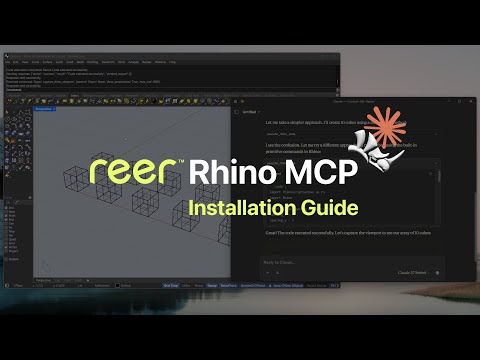](https://youtu.be/1elly3GneIY)
#### Option 2: Local Development Installation
If you want to modify the source code or contribute to the project, you can install it in development mode:
Clone the repository
##### Using Conda
1. Create a new conda environment with Python 3.10:
```bash
conda create -n rhino_mcp python=3.10
conda activate rhino_mcp
```
2. Install the `uv` package manager:
```bash
pip install uv
```
3. Install the package in development mode:
```bash
uv pip install -e .
```
##### Using Existing Python Installation
If you already have Python installed, you can install the MCP server directly to your base environment:
1. Install the package in development mode:
```bash
pip install -e .
```
2. Note that for Claude Desktop configuration, you'll need to find the correct system path to your Python installation. You can find this by running:
```bash
which python # On macOS/Linux
where python # On Windows
```
##### Claude Desktop Integration
Same as Option 1, but you need to specify the full path to the Python interpreter in the `claude_desktop_config.json` file:
```json
{
"mcpServers": {
"rhino": {
"command": "/your/python/path",
"args": ["-m", "rhino_mcp.server"]
}
}
}
```
Example Python paths:
- Windows: `C:\\Users\\username\\anaconda3\\envs\\rhino_mcp\\python.exe`
- macOS: `/Users/username/anaconda3/envs/rhino_mcp/bin/python`
Make sure to:
- Replace the Python path with the path to Python in your conda environment or system Python if using the second method
- Save the file and restart Claude Desktop
> **Important Note:** If you're using a conda environment, you must specify the full path to the Python interpreter as shown above.
### SSE (Server-Side Events) Protocol Rhino MCP Server
The SSE server is an alternative implementation of the Rhino MCP server that uses Server-Side Events for real-time communication. This server runs on `127.0.0.1:8080` and is designed to work with custom web clients. It provides the same functionality as the standard MCP server but uses a different transport protocol that's more suitable for web-based applications.
To use the SSE server:
1. Run the server using: `python -m rhino_mcp.server_sse`
2. Connect your web client to `ws://127.0.0.1:8080/sse`
3. Send messages to `http://127.0.0.1:8080/messages/`
The SSE server supports all the same Rhino operations as the standard MCP server, making it ideal for building custom web interfaces for Rhino control.
## Usage
### Using with Claude
Once connected, Claude or another LLM can use the following MCP tools:
- `get_rhino_scene_info()`: Get simplified scene information focusing on layers and example objects
- `get_rhino_layers()`: Get information about all layers in the Rhino scene
- `execute_code(code)`: Execute arbitrary Python code in Rhino
- `get_rhino_objects_with_metadata(filters, metadata_fields)`: Get detailed information about objects in the scene with their metadata, with optional filtering
- `capture_rhino_viewport(layer, show_annotations, max_size)`: Capture the viewport with optional annotations and layer filtering
- `get_rhino_selected_objects(include_lights, include_grips)`: Get information about objects currently selected in the Rhino viewport
- `look_up_RhinoScriptSyntax(function_name)`: Look up documentation for a RhinoScriptSyntax function directly from the Rhino3D developer website
### Example Commands
Here are some examples of what you can ask Claude to do:
- "Get information about the current Rhino scene"
- "Create a cube at the origin"
- "Get all layers in the Rhino document"
- "Execute this Python code in Rhino: ..."
- "Can you tell me the dimension of the wall I selected in Rhino?"
- "Help me calculate the surface area of the selected floor in Rhino"
- "Show me the documentation for the SelectedObjects function"
- "How do I use the AddCylinder function in Rhino Script?"
- ...
## Contributing
We welcome contributions to the RhinoMCP project! If you're interested in helping, here are some ways to contribute:
1. **Bug Reports**: If you find a bug, please create an issue with a detailed description of the problem and steps to reproduce it.
2. **Feature Requests**: Have an idea for a new feature? Open an issue to discuss it.
3. **Code Contributions**: Want to add a feature or fix a bug?
- Fork the repository
- Create a new branch for your changes
- Submit a pull request with a clear description of your changes
Please ensure your code follows the existing style and includes appropriate documentation.
## Disclaimer
This software is provided "as is", without warranty of any kind, express or implied. REER, INC. makes no warranties, representations or guarantees with respect to the software, including but not limited to quality, reliability, compatibility, or fitness for a particular purpose.
By using this software, you acknowledge and agree that REER, INC. shall not be liable for any direct, indirect, incidental, special, or consequential damages arising out of the use or inability to use the software.
This project is in active development and may contain bugs or incomplete features. While we strive for quality and reliability, please use appropriate caution when implementing in production environments.
## Relevant Documentation and Resources
- MCP offical Documentation :
- Client Developer: https://modelcontextprotocol.io/quickstart/client
- Server Developer: https://modelcontextprotocol.io/quickstart/server
- Open Source MCP Documentation: https://github.com/cyanheads/model-context-protocol-resources
- Client Developer: https://github.com/cyanheads/model-context-protocol-resources/blob/main/guides/mcp-client-development-guide.md
- Server Developer: https://github.com/cyanheads/model-context-protocol-resources/blob/main/guides/mcp-server-development-guide.md
- Open web UI for building AI agent interface:https://github.com/open-webui/open-webui
- Switch between Stdio Server and SSE server:https://github.com/supercorp-ai/supergateway



