Content
#  Interactive Feedback MCP
**Sorry for the inconvenience, but previously many features worked normally when downloading the source code, however, there were issues with UV installation**
A simple [MCP Server](https://modelcontextprotocol.io/), used to implement human-AI collaborative workflows in AI-assisted development tools (such as [Cursor](https://www.cursor.com), [Cline](https://cline.bot), and [Windsurf](https://windsurf.com)) and Augment plugins. The server allows you to easily provide feedback directly to AI agents, enabling better collaboration between AI and you.
**For more information, see:**
* [功能说明.md](./功能说明.md) - Understand the features provided by this service.
* [安装与配置指南.md](./安装与配置指南.md) - Get detailed installation and setup steps.
**Note:** This server is designed to run locally with MCP clients (e.g., Cursor, VS Code) as it needs direct access to the user's operating system to display UI and perform keyboard/mouse operations.
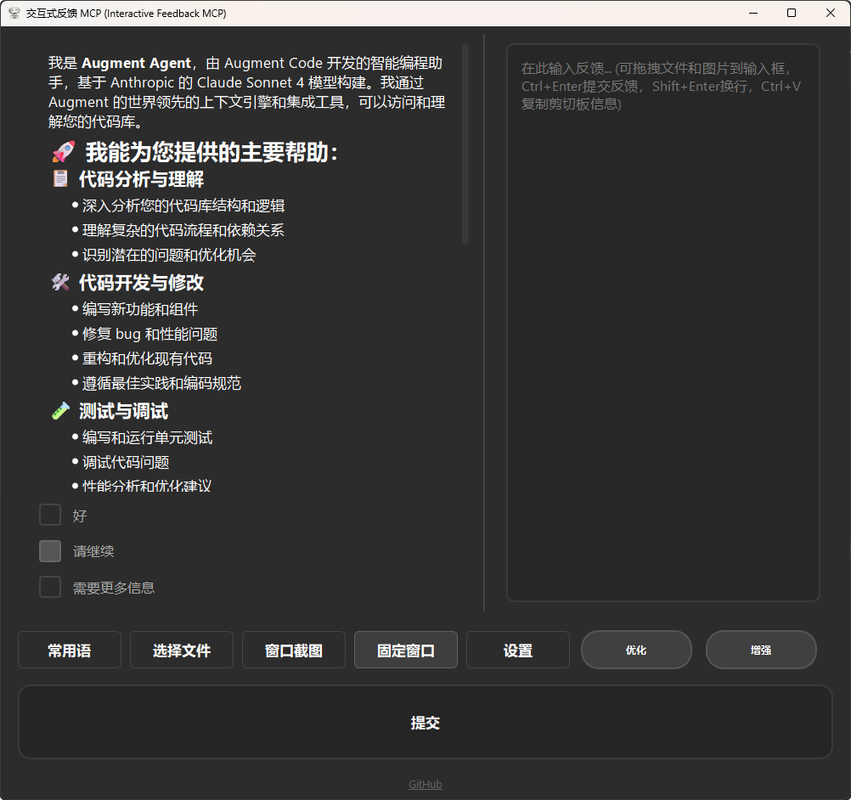
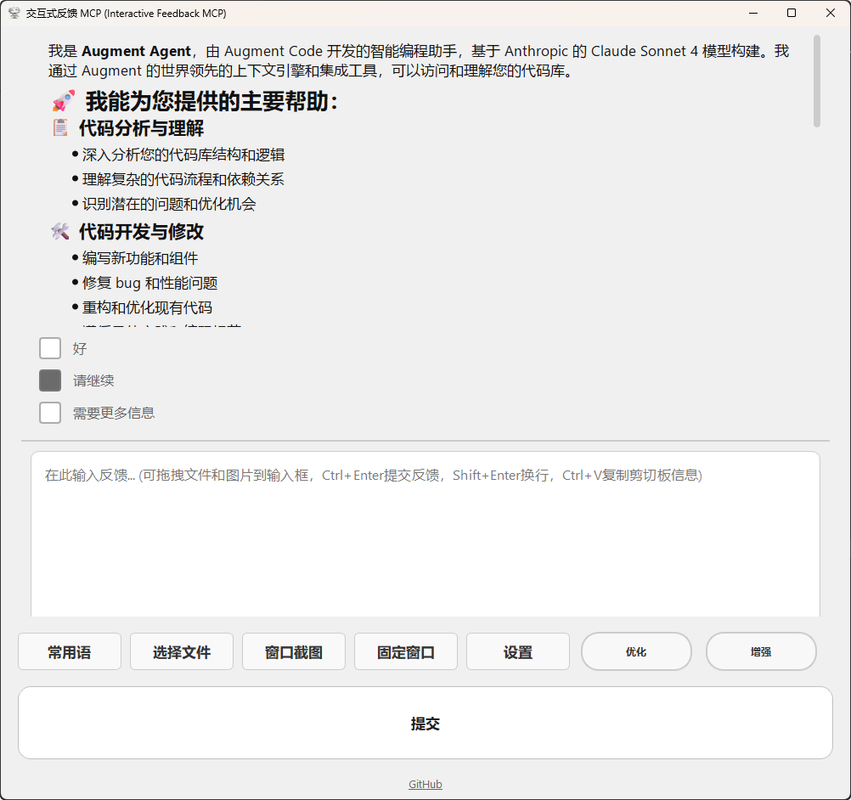
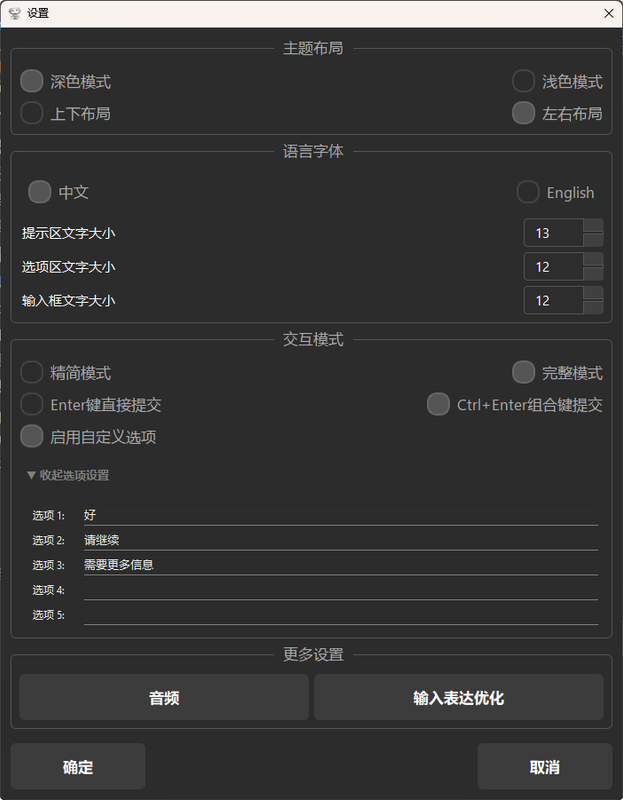
## 🖼️ Examples


*(Note that example images may not reflect the latest UI adjustments, but the core interaction process remains unchanged)*
## 💡 Why Use This Tool?
1. In environments like Cursor, each prompt you send to the LLM is treated as an independent request—each request counts towards your monthly limit (e.g., 500 advanced requests). When you iterate on ambiguous instructions or correct misunderstood outputs, this can become inefficient as each subsequent clarification triggers a new request.
This MCP server introduces a workaround: it allows the model to pause and request clarification before finalizing a response. Instead of completing the request directly, the model triggers a tool call (`interactive_feedback`), opening an interactive feedback window. You can then provide more details or request changes—model continues the conversation, all within a single request.
Essentially, this cleverly utilizes tool calls to defer completion of the request. Since tool calls do not count as separate advanced interactions, you can loop through multiple feedback cycles without consuming extra requests.
In short, this helps your AI assistant request clarification before making guesses, wasting fewer requests. This means fewer wrong answers, better performance, and less wasted API usage.
2. Can partially replace the original IDA conversation panel, directly using MCP services to converse with AI
- **💰 Reduce Advanced API Calls:** Avoid wasting expensive API calls to generate code based on guesses.
- **✅ Fewer Errors:** Clarifications before actions mean less erroneous code and time wasted.
- **⏱️ Faster Cycles:** Quick confirmations beat debugging wrong guesses.
- **🎮 Better Collaboration:** Turn one-way instructions into conversations, keeping you in control.
## 🌟 Core Features and Tips
### Handling Images
- **Paste:** Press `Ctrl+V` (or `Cmd+V`) to paste images in the text input box. You can paste multiple images and text simultaneously.
- **Drag and Drop:** Drag image files directly from the file manager into the text input box.
- **Select:** Click the "Choose Files" button to select image files through the file dialog.
- **Image Preview:** Added images will display as clickable thumbnail previews below the input box. Clicking the thumbnail removes the corresponding image.
### File References
- **Drag Files:** Drag any files from the file manager into the text input box to generate blue file references (e.g., `@filename.txt`).
- **Select Files:** Click the "Choose Files" button to select multiple files, supporting mixed selection of images and regular files.
- **Smart Handling:** The system automatically identifies image files and regular files, processing and displaying them accordingly.
### Common Phrases
- **Hover Preview:** Hover over the "Common Phrases" button to quickly preview all common phrases, supporting scrolling.
- **Quick Insertion:** Click common phrases in the preview window to insert directly into the input box without opening the management dialog.
- **Management:** Click the "Common Phrases" button to open the management dialog, where you can add, edit, delete, and sort common phrases.
### Text Optimization and Enhancement
- **One-Click Optimization:** Click the "Optimize" button to convert spoken input into structured instructions, improving AI understanding accuracy.
- **Custom Enhancement:** Click the "Enhance" button to use custom prompts to process text specifically.
- **API Configuration:** Configure API keys for AI providers like OpenAI, Gemini, and DeepSeek on the settings page.
- **Undo Function:** After optimization, use Ctrl+Z to undo and restore the original text content.
### Window Screenshot
- **Rectangular Screenshot:** After clicking the screenshot button, the UI window minimizes automatically, allowing for rectangular area selection screenshot.
- **Automatic Integration:** The screenshot is automatically added to the input content, seamlessly integrated with the image feature.
- **Real-Time Preview:** Provides real-time preview of the selected area during screenshot selection.
### Interface Layout
- **Layout Switching:** Choose between vertical layout (top-bottom distribution) or horizontal layout (left-right distribution) on the settings page.
- **Splitter Dragging:** Drag the splitter handle to adjust the size of each area; double-clicking the splitter resets it to the default ratio.
- **State Saving:** Layout selection and splitter position are saved automatically and restored on the next launch.
### Display Mode Configuration
- **Simple Mode:** Displays the concise question processed by AI, suitable for quick interactions.
- **Full Mode:** Displays the AI's original complete reply content, suitable for detailed viewing.
- **Dynamic Switching:** Can switch display modes in real-time on the settings page, taking effect immediately.
## 🛠️ Tools
This server exposes the following tools through the Model Context Protocol (MCP):
### `interactive_feedback`
- **Function:** Initiates an interactive session with the user, displaying a prompt, providing optional choices, and collecting user text, image, and file reference feedback. Supports multiple interaction methods including text input, image pasting/dragging, and file dragging/selecting.
- **Parameters:**
- `message` (str, optional): Concise question or prompt displayed in simple mode
- `full_response` (str, optional): AI's original complete reply content displayed in full mode
- `predefined_options` (List[str], optional): A list of strings, each representing a predefined option for the user to choose. If provided, these options are displayed as checkboxes.
- **Intelligent Fallback Mechanism:**
- **Simple Mode:** Prioritizes `message` parameter; if empty, automatically falls back to `full_response`
- **Full Mode:** Prioritizes `full_response` parameter; if empty, automatically falls back to `message`
- **Real-Time Mode Detection:** Reads the latest user mode configuration on each call, supporting dynamic switching
- **Error Handling:** Returns an error only when both parameters are empty, avoiding unnecessary call failures
- **User Interaction Methods:**
- **Text Input:** Enter feedback text in the main input box
- **Image Handling:** Paste images via Ctrl+V or drag image files
- **File References:** Add file references by dragging files or clicking the "Choose Files" button
- **Common Phrases:** Quickly insert preset phrases via hover preview or management dialog
- **Layout Adjustment:** Adjust interface layout by dragging splitters
- **Text Optimization:** Process input text through optimization and enhancement buttons
- **Window Screenshot:** Perform rectangular selection screenshot via screenshot button
- **Data Format Returned to AI Assistant:**
The tool returns a tuple containing structured feedback content. Each element in the tuple can be a string (text feedback or file reference information) or a `fastmcp.Image` object (image feedback).
Specifically, data collected from the UI is converted into the following `content` item list and further processed into a FastMCP-compatible tuple by the MCP server:
```json
// Example of raw JSON structure returned by UI to MCP server
{
"content": [
{"type": "text", "text": "User's text feedback..."},
{"type": "image", "data": "base64_encoded_image_data", "mimeType": "image/jpeg"},
{"type": "file_reference", "display_name": "@example.txt", "path": "/path/to/local/example.txt"}
// ... possibly more items
]
}
```
* **Text Content** (`type: "text"`): Contains user-input text and/or combined text of selected predefined options.
* **Image Content** (`type: "image"`): Contains Base64-encoded image data and the image's MIME type (e.g., `image/jpeg`). These are converted into `fastmcp.Image` objects in the MCP server.
* **File References** (`type: "file_reference"`): Contains the display name (e.g., `@filename.txt`) and the full local path of the file dragged or selected by the user. This information is usually passed to the AI assistant as a text string.
**Note:**
* Even if there is no user input (e.g., the user closes the feedback window directly), the tool returns a specific message indicating "no feedback," such as `("[User provided no feedback]",)`.
### `optimize_user_input`
- **Function:** Uses the configured LLM API to optimize or enhance user-input text, converting spoken, potentially ambiguous input into more structured, clear, and AI-model-understandable text.
- **Parameters:**
- `original_text` (str): **Required.** User's original input text
- `mode` (str): **Required.** Optimization mode:
- `'optimize'`: One-click optimization using preset universal optimization instructions
- `'reinforce'`: Prompt reinforcement using user-defined reinforcement instructions
- `reinforcement_prompt` (str, optional): User's custom instructions in 'reinforce' mode
- **Supported AI Providers:**
- **OpenAI**: GPT-4o-mini and similar models
- **Google Gemini**: Gemini-2.0-flash and similar models
- **DeepSeek**: DeepSeek-chat and similar models
- **Volcano Engine**: DeepSeek-v3 and similar models
- **Return:** Optimized text content or error information
## 📦 Installation
### Method 1: Development Installation (Recommended)
**Recommended to use development mode installation for best stability and feature completeness.**
Development mode installation provides:
- ✅ **Complete feature support and best stability**
- ✅ **Real-time code updates and bug fixes**
- ✅ **Complete resource files and configuration support**
- ✅ **Better debugging and issue tracking capabilities**
- ✅ **Avoids potential resource file missing issues with PyPI installation**
**Why recommended?**
- PyPI installation may have issues with missing resource files or configuration
- Development mode ensures all features are fully available
- Timely bug fixes and feature improvements
1. **Prerequisites:**
* Python 3.11 or later
* [uv](https://github.com/astral-sh/uv) (recommended Python package manager)
* Windows: `pip install uv`
* Linux/macOS: `curl -LsSf https://astral.sh/uv/install.sh | sh`
2. **Get Code:**
```bash
git clone https://github.com/pawaovo/interactive-feedback-mcp.git
cd interactive-feedback-mcp
```
3. **Install Dependencies:**
```bash
uv pip install -e .
```
or using modern uv syntax:
```bash
uv sync
```
**Current Version:** v2.5.10 - Major documentation update; recommends development mode installation; fixes UI control selected state visual effects
### Method 2: PyPI Installation (Alternative)
**Using uvx:**
```bash
# Run directly without installation
uvx interactive-feedback@latest
# If the first installation fails, pre-install:
uv tool install interactive-feedback@latest
```
**Using pip:**
```bash
pip install interactive-feedback
```
**Note:** PyPI installation may have issues with missing resource files or configuration; recommends development mode installation.
## ⚙️ Configuration
### Method 1: Development Mode Configuration (Recommended)
Add the following configuration to your `claude_desktop_config.json` (Claude Desktop) or `mcp_servers.json` (Cursor, usually in `.cursor-ai/mcp_servers.json` or user configuration directory):
```json
{
"mcpServers": {
"interactive-feedback": {
"command": "uv",
"args": [
"--directory",
"/path/to/interactive-feedback-mcp",
"run",
"interactive-feedback"
],
"timeout": 600,
"autoApprove": [
"interactive_feedback",
"optimize_user_input"
]
}
}
}
```
**Replace `/path/to/interactive-feedback-mcp` with your actual project path.**
### Method 2: uvx Configuration (Alternative)
If you choose to install using uvx, use the following configuration:
```json
{
"mcpServers": {
"interactive-feedback": {
"command": "uvx",
"args": [
"interactive-feedback@latest"
],
"timeout": 600,
"autoApprove": [
"interactive_feedback",
"optimize_user_input"
]
}
}
}
```
### Recommended Configuration: Development Mode + UI Settings
**Configure development mode in MCP JSON, manage API keys through UI settings page:**
```json
{
"mcpServers": {
"interactive-feedback": {
"command": "uv",
"args": [
"--directory",
"/path/to/interactive-feedback-mcp",
"run",
"interactive-feedback"
],
"timeout": 600,
"autoApprove": [
"interactive_feedback",
"optimize_user_input"
]
}
}
}
```
**Development Mode Advantages:**
- ✅ **Best Stability:** Complete feature support and resource files
- ✅ **Real-Time Updates:** Obtain latest code fixes
- ✅ **Complete Features:** Avoids issues with PyPI installation
- ✅ **Flexible Configuration:** API keys managed through UI interface
- ✅ **Multi-Provider Support:** Supports configuration and switching of multiple AI providers
- ✅ **User-Friendly:** Intuitive graphical interface configuration
**Advantages:**
- ✅ **Zero Installation:** No manual installation of dependencies
- ✅ **Automatic Updates:** Always use the latest version
- ✅ **Flexible Configuration:** API keys managed through UI interface
- ✅ **Multi-Provider Support:** Supports configuration and switching of multiple AI providers
- ✅ **User-Friendly:** Intuitive graphical interface configuration
**Usage Steps:**
1. Add the above configuration to MCP JSON
2. Restart AI assistant
3. Configure API keys on the UI settings page
4. Start using all features
### Method 2: Configuration After pip Installation
If you installed using pip, configure as follows:
```json
{
"mcpServers": {
"interactive-feedback": {
"command": "interactive-feedback",
"timeout": 600,
"autoApprove": [
"interactive_feedback"
]
}
}
}
```
Development Mode Configuration
If you have cloned the repository for development, configure as follows:
**Important Note:** Replace `/path/to/interactive-feedback-mcp` with the **actual absolute path** where you cloned or unzipped this repository on your system.
```json
{
"mcpServers": {
"interactive-feedback": {
"command": "uv",
"args": [
"--directory",
"path/to/interactive-feedback-mcp",
"run",
"interactive-feedback"
],
"timeout": 600,
"autoApprove": [
"interactive_feedback"
]
}
}
}
```
**Explanation of `command` and `args`:**
- If `uv` is in your system path and you want `uv` to manage the virtual environment and run scripts, use `"command": "uv", "args": ["run", "interactive-feedback"]`.
- If you prefer to use the system Python directly (and have installed dependencies in the global or project virtual environment), use `"command": "interactive-feedback"` (after installing the package).
- **`cwd` (Current Working Directory):** It is highly recommended to set `cwd` to the root directory of this project to ensure the script can find its dependency files correctly.
2. Add the following custom rules to your AI assistant (e.g., in Cursor's settings -> Rules -> User Rules):
```text
Always respond in Chinese-simplified
You are the AI programming assistant of the IDE, following the core workflow (research -> conceive -> plan -> execute -> optimize -> review) to assist users in Chinese, targeting professional programmers, with concise and professional interactions, avoiding unnecessary explanations.
[Communication Rules]
1. Responses start with a pattern tag `[模式:X]`, initially `[模式:研究]`.
2. The core workflow strictly follows the sequence of `research -> conceive -> plan -> execute -> optimize -> review`, and users can instruct to jump.
[Core Workflow Details]
1. `[模式:研究]`: Understand the requirements.
2. `[模式:构思]`: Provide at least two feasible solutions and assessments (e.g., `方案 1:描述`).
3. `[模式:计划]`: Refine the selected solution into a detailed, ordered, and executable step list (including atomic operations: files, functions/classes, logical summaries; expected results; new libraries use `Context7` to query). Do not write complete code. After completion, use `interactive-feedback` to request user approval.
4. `[模式:执行]`: Must be executed only after user approval. Strictly follow the plan to code and execute. A brief plan (including context and plan) is stored in `./issues/Task Name.md`. Use `interactive-feedback` for feedback after key steps and upon completion.
5. `[模式:优化]`: After `[模式:执行]` is completed, automatically enter this mode, automatically check and analyze the task implemented (only the relevant code generated in this conversation), focusing on redundant, inefficient, and garbage code, and propose specific optimization suggestions (including optimization reasons and expected benefits). Execute optimization functions after user confirmation.
6. `[模式:评审]`: Evaluate the execution results against the plan, report issues and suggestions. After completion, use `mcp-feedback-enhanced` to request user confirmation.
[Quick Mode]
`[模式:快速]`: Skip the core workflow and respond quickly. After completion, use `interactive-feedback` to request user confirmation.
[Active Feedback and MCP Service]
# MCP interactive-feedback Rules
1. At any stage of the process, task, or conversation, whether in inquiry, reply, or completion phase, MCP interactive-feedback must be called.
2. Whenever user feedback is received, if the feedback content is not empty, MCP interactive-feedback must be called again, and the behavior must be adjusted according to the feedback content.
3. Only when the user explicitly indicates "end" or "no longer need interaction" can the MCP interactive-feedback be stopped, and the process is considered ended.
4. Unless an end instruction is received, all steps must repeatedly call MCP interactive-feedback.
5. Before completing the task, MCP interactive-feedback must be used to ask the user for feedback.
* **MCP Services**:
* `interactive-feedback`: User feedback.
* `Context7`: Query the latest library documentation/examples.
* `DeepWiki`: Query related GitHub repository documentation/examples.
* Preferably use MCP services.
```
This ensures your AI assistant follows a professional programming workflow and uses this MCP server for interactive feedback at appropriate times.
## 🔧 Troubleshooting
If you encounter issues during installation or configuration, refer to the following solutions:
### uvx Installation Troubleshooting
**Issue 1**: Initial uvx installation failure, usually due to large package downloads like PySide6 timing out.
**Solution**:
1. **Pre-install tools**:
```bash
uv tool install interactive-feedback@latest
```
2. **Modify MCP Configuration** (after pre-installation):
```json
{
"mcpServers": {
"interactive-feedback": {
"command": "uvx",
"args": [
"interactive-feedback"
],
"timeout": 600,
"autoApprove": ["interactive_feedback"]
}
}
}
```
**Configuration Differences**:
- `@latest`: Temporary run, downloads the latest version each time
- Without version number: Uses the installed tool, starts faster
**Issue 2**: "Command not found" error when using `"command": "uvx"` in MCP configuration.
**Solution**:
1. **Check uvx installation location**:
```bash
# Windows
where uvx
# Linux/macOS
which uvx
```
2. **Use full path**:
Replace `"uvx"` in MCP configuration with the full path, for example:
```json
{
"mcpServers": {
"interactive-feedback": {
"command": "D:/python/Scripts/uv.exe",
"args": ["interactive-feedback@latest"],
"timeout": 600,
"autoApprove": ["interactive_feedback"]
}
}
}
```
### MCP Configuration Issues
**Issue**: AI assistant cannot recognize or start the service.
**Solution**:
1. **Verify JSON format**: Ensure the configuration file syntax is correct
2. **Check file location**: Confirm `mcp_servers.json` is in the correct directory
3. **Restart AI assistant**: Restart the application after modifying the configuration
4. **Inquire AI assistant**: Provide the configuration file content to the AI and request configuration suggestions
**Example**: In Cursor, ask: "I'm having trouble configuring the MCP service. Please help me check this configuration: [paste your configuration]"
For detailed troubleshooting guides, see [Installation and Configuration Guide.md](./安装与配置指南.md#故障排除).
## 🙏 Acknowledgements
- The original concept and initial development were completed by Fábio Ferreira ([@fabiomlferreira](https://x.com/fabiomlferreira)).
- Functional enhancements were made by pawa ([@pawaovo](https://github.com/pawaovo)), and some ideas were borrowed from the [interactive-feedback-mcp](https://github.com/noopstudios/interactive-feedback-mcp) project.
- The current version is maintained and further developed by pawaovo.
## 📄 License
This project uses the MIT License. See the `LICENSE` file for details
Connection Info
You Might Also Like
awesome-mcp-servers
A collection of MCP servers.
cc-switch
All-in-One Assistant for Claude Code, Codex & Gemini CLI across platforms.
git
A Model Context Protocol server for Git automation and interaction.
oh-my-opencode
Background agents · Curated agents like oracle, librarians, frontend...
TrendRadar
TrendRadar: Your hotspot assistant for real news in just 30 seconds.
Appwrite
Build like a team of hundreds