Content
# Tool List
[](LICENSE)
[](https://kayin-1253854796.cos.ap-shanghai.myqcloud.com/ownmedia/20250622023225261.jpg?imageSlim)
A powerful Xiaohongshu automation toolkit that supports integration with AI clients (such as Claude Desktop) through the MCP protocol, enabling content creation, publishing, and creator data analysis through AI conversations.
## Main Features
- 🍪 **Cookie Management**: Securely obtain, verify, and manage Xiaohongshu login credentials
- 🤖 **MCP Protocol Support**: Seamlessly integrate with AI clients like Claude Desktop and CherryStudio
- 📝 **Automated Publishing**: Supports automated publishing of image and video notes
- 🖼️ **Diverse Image Support**: Supports local images and network URLs
- ⏰ **Scheduled Tasks**: Supports cron expression-based scheduled data collection
- 📊 **Data Collection**: Automatically collects creator center dashboard, content analysis, and fan data
- 🧠 **AI Data Analysis**: Chinese table headers, AI can directly understand and analyze
- 💾 **Data Storage**: Supports local CSV storage (SQL currently reserved, not developed)
- 🎯 **Unified Interface**: One tool solves LLM Xiaohongshu automation demands
## Function List
### Login
- [x] **Login** - Supports traditional command-line login and login through AI conversations
### Content Publishing
- [x] **Image and Text Publishing** - Supports publishing image and text notes
- [x] **Video Publishing** - Supports publishing video notes
- [x] **Topic Tags** - Supports automatic addition of topic tags to increase content exposure
- [ ] **Content Search** - Supports specified search (development plan)
### Data Collection
- [x] **Dashboard Data** - Collects account overview data (fans, likes, etc.)
- [x] **Content Analysis Data** - Collects note performance data (views, likes, etc.)
- [x] **Fan Data** - Collects fan growth and analysis data
- [x] **Scheduled Collection** - Supports automatic scheduled collection using cron expressions
- [x] **Data Storage** - Local CSV storage (default)
## Environment Requirements
### Browser Environment
- **Google Chrome Browser** (latest version recommended)
- **ChromeDriver** (version must match Chrome version exactly)
### Viewing Chrome Version
In Chrome browser, visit: `chrome://version/`
<!--  -->
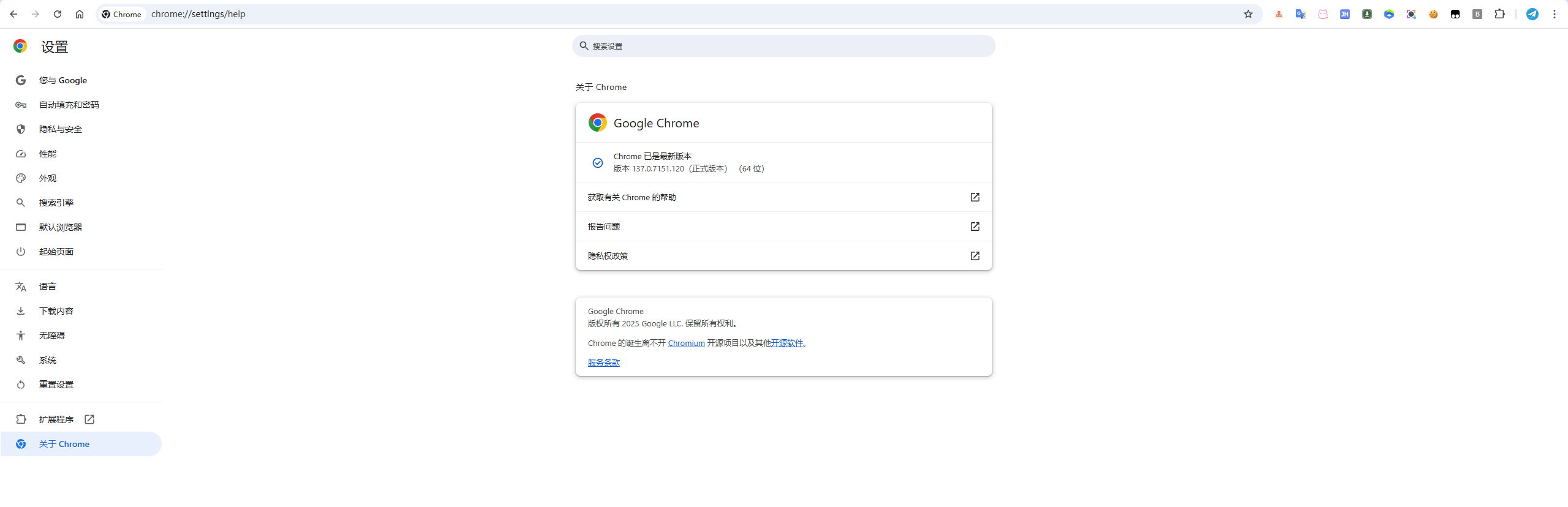
### ChromeDriver Installation
#### Method 1: Automatic Download (Recommended)
```bash
# Use webdriver-manager for automatic management
pip install webdriver-manager
```
#### Method 2: Manual Download
1. 📋 Visit official download page: [Chrome for Testing](https://googlechromelabs.github.io/chrome-for-testing/)
2. 🎯 Select ChromeDriver that matches your Chrome version
3. 📁 Download and extract to a suitable location (e.g., `/usr/local/bin/` or `C:\tools\`)
4. ⚙️ Configure correct path in `.env` file
#### Method 3: Package Manager Installation
```bash
# macOS (Homebrew)
brew install --cask chromedriver
# Windows (Chocolatey)
choco install chromedriver
# Linux (Ubuntu/Debian)
sudo apt-get install chromium-chromedriver
```
> ⚠️ **Important Note**: Version mismatch is a common cause of problems, ensure ChromeDriver version matches Chrome browser version exactly!
### Remote Browser Connection
Supports connecting to a running remote Chrome instance, improving performance and supporting remote deployment scenarios.
#### Configuration Method
Add the following configuration to the `.env` file:
```bash
# Enable remote browser connection
ENABLE_REMOTE_BROWSER=true
REMOTE_BROWSER_HOST=http://xx.xx.xx.xx
REMOTE_BROWSER_PORT=xxxx
```
#### Starting Remote Chrome
- If an error occurs due to lack of permissions, check if the `./chrome-data` directory exists and verify read and write permissions. If permissions are insufficient, follow the steps below to repair:
1. `docker run --rm selenium/standalone-chrome id seluser` to obtain seluser's uid, e.g., `uid=1200(seluser) gid=1200(seluser) groups=1200(seluser)`
2. `sudo chown -R 1200:1200 ./chrome-data` to grant seluser read and write permissions, where 1200 is seluser's uid
3. Re-execute `docker-compose up --force-recreate` to start the container
```bash
version: '3.8'
services:
selenium-chrome:
image: selenium/standalone-chrome:latest
container_name: selenium-chrome
ports:
- "54444:4444"
- "57900:7900"
shm_size: 2g
environment:
- SE_VNC_NO_PASSWORD=1
volumes:
- ./chrome-data:/home/seluser # Replace mount path to ensure permissions
restart: unless-stopped
command: >
bash -c "mkdir -p /home/seluser/.config/google-chrome &&
touch /home/seluser/.config/google-chrome/test.txt &&
/opt/bin/entry_point.sh"
```
#### Use Cases
- **Remote Deployment**: Run Chrome on a server and connect locally
- **Performance Optimization**: Reuse an already running Chrome instance to avoid repeated startup
- **Development Debugging**: Connect to an already logged-in Chrome instance to maintain session state
- **Docker Environment**: Share Chrome instances between containers
#### Precautions
- Remote connection will not start a new Chrome instance
- Ensure the target Chrome instance has remote debugging enabled
- Certain operations (e.g., window size adjustment) may not be supported in remote mode
## Quick Start
### Minimalist Usage
```bash
# Clone the project
git clone https://github.com/aki66938/xhs-toolkit.git
cd xhs-toolkit
# Run (will automatically install dependencies)
./xhs # Mac/Linux
xhs.bat # Windows
# Or use Python
python install_deps.py # Installation guide
./xhs # Start the program
```
### Interactive Menu
Running `./xhs` will display a friendly menu interface:
```
╭─────────────────────────────────────────╮
│ Xiaohongshu MCP Toolkit v1.3.0 │
│ Quick Operation Menu System │
╰─────────────────────────────────────────╯
【Main Menu】
1. 🔄 Data Collection
2. 🌐 Browser Operation
3. 📊 Data Management
4. 🍪 Cookie Management
5. 🚀 MCP Server
6. ⚙️ System Tools
0. Exit
```
### Running from Source
#### Method 1: uv (Recommended ⚡)
```bash
# Clone the project
git clone https://github.com/aki66938/xhs-toolkit.git
cd xhs-toolkit
# Install dependencies and run using uv
uv sync
uv run python xhs_toolkit.py status ## Verify the tool is available
```
> 💡 **uv Usage Tip**: In the documentation, all `python` commands can be replaced with `uv run python` for a faster dependency management experience!
#### Method 2: pip (Traditional Method)
```bash
# Clone the project
git clone https://github.com/aki66938/xhs-toolkit.git
cd xhs-toolkit
# Create a virtual environment (recommended)
python -m venv venv
source venv/bin/activate # Windows: venv\Scripts\activate
# Install dependencies
pip install -r requirements.txt
python xhs_toolkit.py status ## Verify the tool is available
```
## Usage Guide
### 1. Create Configuration File
Copy and edit the configuration file:
```bash
cp env_example .env
vim .env # Edit configuration
```
**Required Configuration**:
```bash
# Chrome browser path
CHROME_PATH="/Applications/Google Chrome.app/Contents/MacOS/Google Chrome"
# ChromeDriver path
WEBDRIVER_CHROME_DRIVER="/opt/homebrew/bin/chromedriver"
```
### 2. Obtain Login Credentials
```bash
# Method 1: Use interactive menu
./xhs
# Select 4 -> Cookie Management -> 1 -> Obtain new Cookies
# Method 2: Direct command
./xhs cookie save
```
In the popped-up browser, if connected to a remote browser, you can access http://ip:57900 to access the VNC interface, then perform the following steps:
1. Log in to Xiaohongshu Creator Center
2. Ensure normal access to Creator Center functions
3. After completion, press Enter to save
### 3. Start MCP Server
```bash
# Method 1: Use interactive menu
./xhs
# Select 5 -> MCP Server -> 1 -> Start Server
# Method 2: Direct command
./xhs server start
```
### 4. Client Configuration
**Claude Desktop**
#### Using uv (Recommended)
In `~/Library/Application Support/Claude/claude_desktop_config.json`, add:
```json
{
"mcpServers": {
"xhs-toolkit": {
"command": "uv",
"args": [
"--directory",
"/path/to/xhs-toolkit",
"run",
"python",
"-m",
"src.server.mcp_server",
"--stdio"
]
}
}
}
```
#### Using System Python
If not using uv, configure as:
```json
{
"mcpServers": {
"xhs-toolkit": {
"command": "python3",
"args": [
"-m",
"src.server.mcp_server",
"--stdio"
],
"cwd": "/path/to/xhs-toolkit",
"env": {
"PYTHONPATH": "/path/to/xhs-toolkit"
}
}
}
}
```
**Note**:
- Replace `/path/to/xhs-toolkit` with the actual project path
- macOS user configuration file location: `~/Library/Application Support/Claude/claude_desktop_config.json`
- Windows user configuration file location: `%APPDATA%\Claude\claude_desktop_config.json`
- Restart Claude Desktop after modifying the configuration
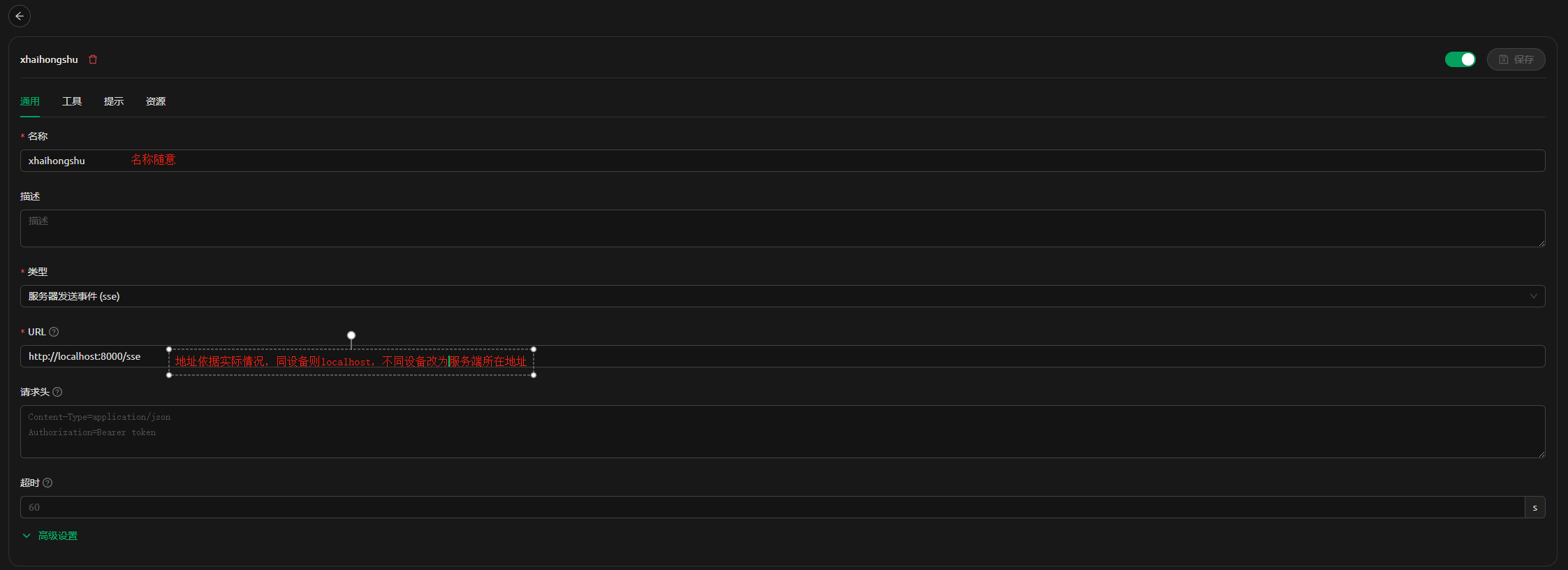
**cherry studio**
Add to MCP configuration:
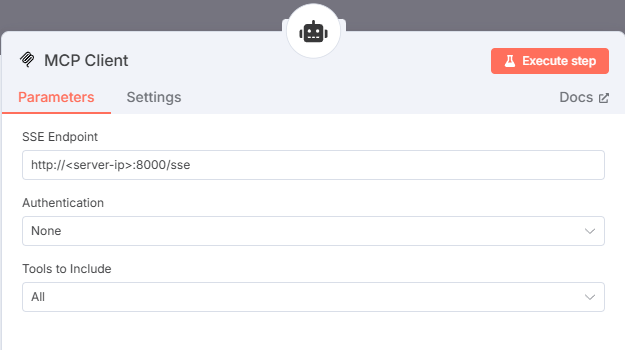
**n8n**
Add configuration to n8n AI agent node tool:
## Main Function
### MCP Tool List
| Tool Name | Function Description | Parameters | Notes |
|---------|----------|------|------|
| `test_connection` | Test MCP connection | None | Connection status check |
| `smart_publish_note` | Publish Xiaohongshu note ⚡ | title, content, images, videos, tags, topics | Supports local path, network URL, topic tags |
| `check_task_status` | Check publish task status | task_id | View task progress |
| `get_task_result` | Get the result of a completed task | task_id | Get final publish result |
| `login_xiaohongshu` | Intelligent login to Xiaohongshu | force_relogin, quick_mode | MCP-specific login without interaction |
| `get_creator_data_analysis` | Get creator data for analysis | None | AI data analysis专用 |
### 💬 AI Conversational Operation Guide
Complete login, publishing, data analysis, and other operations through AI conversations without needing to learn complex commands.
#### 🔐 Intelligent Login
```
User: "Login to Xiaohongshu"
```
**Important Tips**:
- 🚨 For first-time use, do not change the `headless` parameter. Obtain cookies and then change to headless mode
- 🌐 AI calls the login tool and will launch a browser. Manual verification code input or scanning is required for the first login
- 🍪 Successfully saved cookies to local storage for future login-free use
#### 📝 Content Publishing
**Image and Text Publishing (Local Image)**:
```
Please publish a Xiaohongshu note with the title: "Today's Share", content: "...", image path: "/User/me/xhs/poster.png"
```
**Image and Text Publishing (Network Image)**:
```
Please publish a Xiaohongshu note with the title: "Food Share", content: "Today's food", using this network image: https://example.com/food.jpg
```
**Video Publishing**:
```
Please publish a Xiaohongshu video with the title: "Today's Vlog", content: "...", video path: "/User/me/xhs/video.mp4"
```
**Publishing with Topic Tags**:
```
Please publish a Xiaohongshu note with the title: "AI Learning Experience", content: "Learned machine learning basics today", topic: "AI, Artificial Intelligence, Learning Experience", image: "/path/to/image.jpg"
```
#### 📊 Data Analysis
```
Please analyze my Xiaohongshu account data and provide content optimization suggestions
```
#### 🔧 Publishing Principle
During manual upload, the browser will pop up to let the user select the file path. AI will pass the provided path parameters to the MCP tool to automatically complete the upload action.
#### ⚡ Intelligent Waiting Mechanism
- **📷 Image Upload**: Fast upload, no waiting needed
- **🎬 Video Upload**: Polling detects upload progress, waiting for "upload successful" identifier to appear
- **⏱️ Timeout Protection**: Maximum waiting time 2 minutes to avoid MCP call timeout
- **📊 Status Monitoring**: DEBUG mode displays video file size and duration information
- **🔄 Efficient Polling**: Check every 2 seconds, precise text matching
### 📊 Data Collection and AI Analysis Function
Automatically collects Xiaohongshu creator data, supporting scheduled tasks and AI intelligent analysis.
#### 🧠 AI Data Analysis Characteristics
- **Chinese Table Headers**: CSV files use Chinese table headers, AI can directly understand data meaning
- **Intelligent Analysis**: Obtain complete data through `get_creator_data_analysis` MCP tool
- **Data-Driven**: AI provides content optimization suggestions based on real data
- **Trend Analysis**: Analyze account performance trends and fan growth
#### Collected Data Types
1. **Dashboard Data**: Fans, likes, views, and other account overview data
2. **Content Analysis Data**: Note performance data, including views, likes, comments, etc.
3. **Fan Data**: Fan growth trends, fan portrait analysis, etc.
#### Scheduled Task Example
Using cron syntax, write to configuration file `.env`
```bash
# Collect every 6 hours
COLLECTION_SCHEDULE=0 */6 * * *
# Collect on weekdays at 9:00 AM
COLLECTION_SCHEDULE=0 9 * * 1-5
# Collect on the 1st of every month at 2:00 AM
COLLECTION_SCHEDULE=0 2 1 * *
```
### 🎯 Manual Operation Tool
Added interactive menu and manual operation tools, providing a more convenient operation experience:
#### Main Functions
- **🔄 Data Collection**: Manually trigger data collection, supporting selection of data types and time dimensions
- **🌐 Browser Operation**: Quickly open logged-in Xiaohongshu pages
- **📊 Data Management**: Export Excel/JSON, analyze data trends, backup and restore
- **🍪 Cookie Management**: Obtain, view, and verify Cookie status
#### Usage Example
```bash
# Start interactive menu
./xhs
# Or use command line
./xhs manual collect --type all # Collect all data
./xhs manual browser --page publish # Open publish page
./xhs manual export --format excel # Export Excel
./xhs manual analyze # Analyze data trends
```
---
## 🚀 Update Log - v1.3.0
### 🎯 Important Function Updates
#### 🏷️ Automated Topic Tag Function (Complete Implementation)
- **New Topic Automation System**: Based on rigorous Playwright verification testing, achieving truly effective Xiaohongshu topic tag addition
- **Intelligent Input Mechanism**: Using Actions class character-by-character input and JavaScript event simulation, perfectly simulating real user operations
- **Complete DOM Verification**: Supports detection of `data-topic` attributes and hidden identifiers, ensuring topic obtains platform traffic recommendation
- **Multiple Backup Plans**: Multiple input methods and verification mechanisms, providing 99%+ success rate guarantee
#### 🔧 Topic Architecture Reconstruction and Upgrade
- **Terminology Unification**: Comprehensive reconstruction from "tags" to "topics", aligning with Xiaohongshu platform terminology
- **Modular Design**: Added `topic_automation.py` dedicated module, providing basic and advanced automation functions
- **Unified Interface**: Updated all models, interfaces, and server code, maintaining backward compatibility
</div>
🧪 Key Fixes Based on Actual Testing
- **Input Method Fix**: Resolves the issue where direct `send_keys` does not trigger the dropdown menu.
- **Verification Mechanism Improvement**: Multi-layer verification ensures successful topic conversion, including complete metadata checks.
- **Enhanced Fault Tolerance**: Even if a certain link fails, multiple backup plans are available to ensure functional stability.
### Usage Example
```python
# New topic functionality (automatically supported in MCP tools)
smart_publish_note(
title="AI Learning Experience",
content="Sharing some artificial intelligence learning experiences",
topics=["AI", "Artificial Intelligence", "Learning Experience"], # New topic parameter
images=["image.jpg"]
)
```
### Technical Details
- **Verification Test Coverage**: Based on 3 rigorous Playwright verification tests.
- **DOM Structure Adaptation**: Completely adapts to the real topic label DOM structure of Xiaohongshu.
- **Performance Optimization**: Intelligent waiting mechanism and concurrent processing improve automation efficiency.
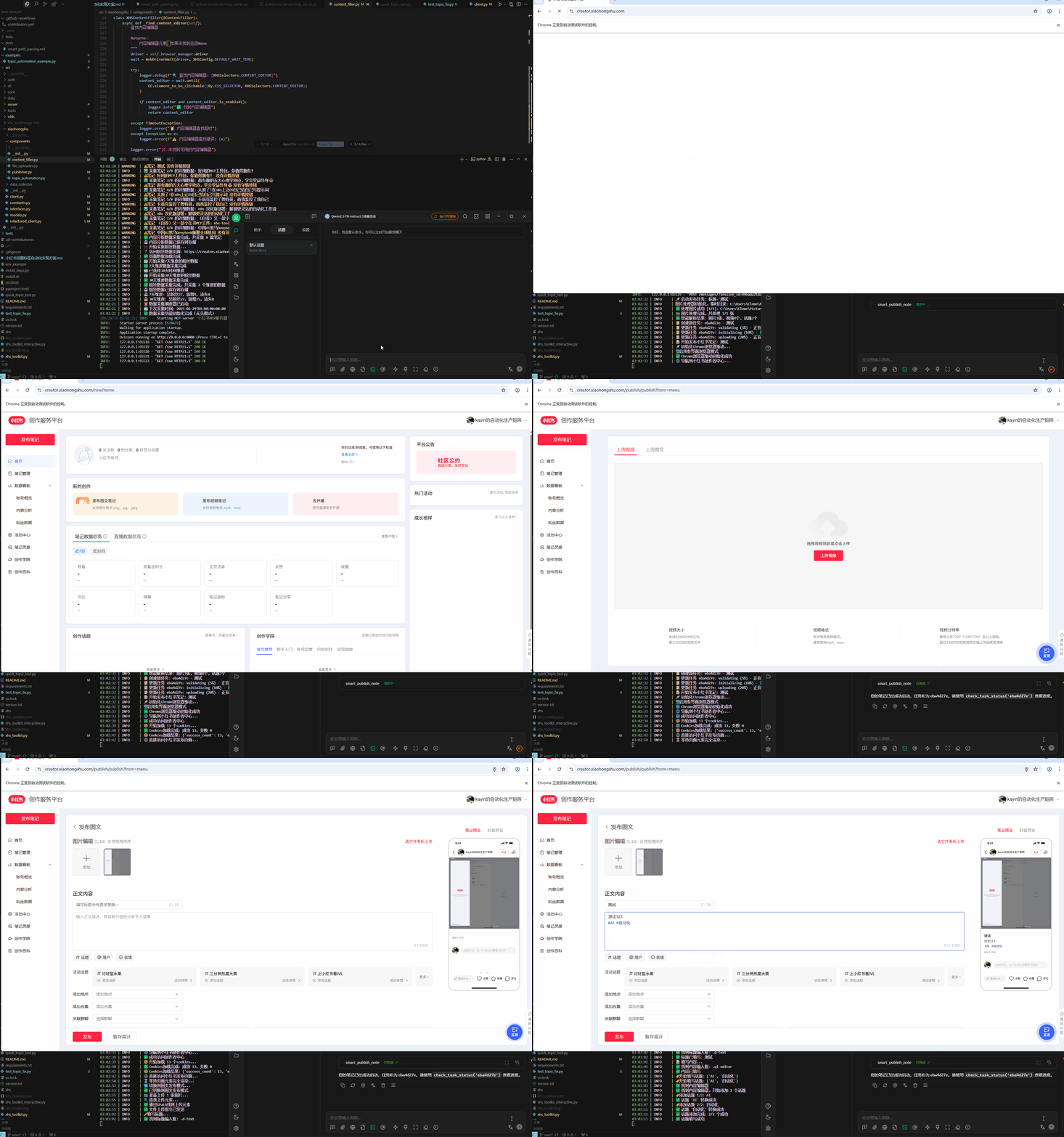
### Test Effects
---
<details>
<summary>📜 Click to View v1.2.5 Update Log</summary>
## 🚀 Update Log - v1.2.5
### New Features
#### 🎮 Interactive Menu System
- Unified entry `./xhs`, no need to remember complex commands.
- Numerical selection menu, more intuitive operation.
- Real-time status display, understand system status.
- Supports Windows (xhs.bat) and Unix systems.
#### 🛠️ Manual Operation Toolset
- **manual collect**: Manual data collection, supports selecting type and dimension.
- **manual browser**: Open an already logged-in browser for quick access to various pages.
- **manual export**: Export data in Excel or JSON format.
- **manual analyze**: Analyze data trends, view best notes.
- **manual backup/restore**: Data backup and restore functionality.
#### 🔧 Improved Dependency Management
- Intelligent detection of uv/pip environment.
- Automatic selection of the best Python environment.
- Added `install_deps.py` installation wizard.
- Supports both uv and pip installation methods.
### Optimizations and Improvements
- Simplified startup commands, unified use of `./xhs`.
- Improved Windows support, provided bat and PowerShell scripts.
- Optimized code structure, split modules to avoid single file being too large.
- Enhanced error handling and user prompts.
</details>
---
<details>
<summary>📜 Click to View v1.2.4 Update Log</summary>
## 🚀 Update Log - v1.2.4
### New Features
#### 🌐 Network Image Support
- Supports HTTP/HTTPS image links for direct publishing.
- Automatically downloads network images to a local temporary directory.
- Supports common image formats (jpg, png, gif, webp).
#### 📁 Improved Image Processing
- Added `ImageProcessor` module to uniformly handle various image inputs.
- Supports mixed input: `["local.jpg", "https://example.com/img.jpg"]`.
- More flexible input format support.
### Usage Example
```python
# Network image
smart_publish_note(
title="Food Sharing",
content="Today's food",
images=["https://example.com/food.jpg"]
)
# Mixed use
smart_publish_note(
title="Travel Record",
content="The scenery is beautiful",
images=["/local/photo.jpg", "https://example.com/view.jpg"]
)
```
### Other Optimizations
- Improved text processing, retained line breaks.
- Updated documentation.
</details>
---
<details>
<summary>📜 Click to View v1.2.3 Update Log</summary>
## 🚀 Update Log - v1.2.3
### 🔧 Important Fixes
#### 🖥️ Headless Mode Optimization
- **Fixes headless mode failure issue**: Enhanced Chrome headless mode configuration, added multiple insurance parameters.
- **Optimized browser startup logic**: Used `--headless=new` and `--headless` dual headless mode configuration.
- **Optimized configuration verification**: Ensured all modules use unified HEADLESS configuration to avoid configuration inconsistencies.
### 💡 Details
- Added `--disable-gpu-compositing`, `--disable-notifications` and other multiple Chrome parameters.
- Improved MCP server asynchronous initialization logic.
- Enhanced compatibility and stability in Windows environments.
</details>
---
<details>
<summary>📜 Click to View v1.2.2 Update Log</summary>
## 🚀 Update Log - v1.2.2
### 🆕 New Features
#### 🔐 Intelligent Login System
- Added automated login detection mechanism, supports non-interactive login in MCP mode.
- Implemented four detection mechanisms: URL status, page elements, authentication, and error status detection.
- Added intelligent waiting mechanism, automatically monitors login completion status.
- Optimized cookie saving logic, distinguished between interactive and automated modes.
#### 🧠 Intelligent Path Parsing System
- Added intelligent file path recognition function, supports automatic parsing of multiple input formats.
- Added `smart_parse_file_paths()` function, using JSON parsing, ast.literal_eval and other parsing methods.
- Adapted to LLM conversation scenarios and array data transfer for platforms like dify.
**Supported Input Formats**:
- Comma-separated: `"a.jpg,b.jpg,c.jpg"`
- Array string: `"[a.jpg,b.jpg,c.jpg]"`
- JSON array: `'["a.jpg","b.jpg","c.jpg"]'`
- Real array: `["a.jpg", "b.jpg", "c.jpg"]`
- Mixed format: `"[a.jpg,'b.jpg',\"c.jpg\"]"`
#### 🛠️ Code Architecture Optimization
- Refactored login-related modules to improve code maintainability.
- Optimized exception handling mechanism to enhance system stability.
### 🔧 Fix Features
#### 📝 Path Handling Optimization
- Solved the problem of multi-image upload format recognition reported by users.
- Intelligently distinguished between string and array formats to avoid data type judgment errors.
- Supported various data formats passed from different platforms (dify, LLM conversation, etc.).
- Enhanced fault tolerance, even if the format is not standard, it can still be parsed.
</details>
---
## 🚀 Development Roadmap
### 📋 To-be-developed Features
#### 🔥 High Priority
- **🔐 Headless Mode Login** - Complete the automatic login process in headless mode to improve automation experience.
#### 🔮 Long-term Planning
- **🤖 AI Creation Statement** - Intelligent detection of AI-generated content, automatically adding creation statement identification.
- **👥 Multi-account Management** - Supports multi-account switching and publishing (following platform policies, single IP limited to 3 accounts).
- **🌐 Proxy Mode Support** - Cooperates with multi-account functionality, supports proxy network access.
- **🐳 Docker Containerization** - Provides containerized deployment solutions for easy multi-instance management and deployment.
- **🔍 Content Review Mechanism** - Sensitive word reminders or filtering.
## 🔧 Troubleshooting
### Common ChromeDriver Issues
#### ❌ Issue: Version mismatch error
```
selenium.common.exceptions.SessionNotCreatedException: session not created: This version of ChromeDriver only supports Chrome version XX
```
**✅ Solution**:
1. 🔍 Check Chrome version: Visit `chrome://version/`
2. 📥 Download the corresponding version of ChromeDriver: [Chrome for Testing](https://googlechromelabs.github.io/chrome-for-testing/)
3. ⚙️ Update the path configuration in the `.env` file.
#### ❌ Issue: ChromeDriver not found
```
selenium.common.exceptions.WebDriverException: 'chromedriver' executable needs to be in PATH
```
**✅ Solution**:
1. Confirm that ChromeDriver has been downloaded and unzipped.
2. Option A: Add ChromeDriver to the system PATH.
3. Option B: Configure the complete path in `.env`: `WEBDRIVER_CHROME_DRIVER="/path/to/chromedriver"`.
4. Linux/macOS: Ensure the file has execution permissions `chmod +x chromedriver`.
#### ❌ Issue: Incorrect Chrome browser path
```
selenium.common.exceptions.WebDriverException: unknown error: cannot find Chrome binary
```
**✅ Solution**: Configure the correct Chrome path in the `.env` file.
```bash
# macOS
CHROME_PATH="/Applications/Google Chrome.app/Contents/MacOS/Google Chrome"
# Windows
CHROME_PATH="C:\Program Files\Google\Chrome\Application\chrome.exe"
# Linux
CHROME_PATH="/usr/bin/google-chrome"
```
### Other Common Issues
#### ❌ Issue: MCP connection failure
**✅ Solution**:
1. Confirm the server has started: `python xhs_toolkit.py server start`.
2. Check if port 8000 is occupied.
3. Restart Claude Desktop or other MCP clients.
#### ❌ Issue: Login failure
**✅ Solution**:
1. Clear old cookies: Delete the `xhs_cookies.json` file.
2. Re-acquire cookies: `python xhs_toolkit.py cookie save`.
3. Ensure the correct Xiaohongshu creator center account is used.
---
## 🙏 Contributors
Thanks to all who have contributed to the project!
<a href="https://github.com/aki66938/xhs-toolkit/graphs/contributors">
<img src="https://contrib.rocks/image?repo=aki66938/xhs-toolkit" />
</a>
If you also want to contribute to the project, feel free to submit a Pull Request or Issue!
## 📄 License
This project is open-sourced under the [MIT License](LICENSE).
## 🔐 Security Commitment
- ✅ **Local Storage**: All data is stored locally.
- ✅ **Open-source Transparency**: Code is completely open-sourced and auditable.
- ✅ **User Control**: You have complete control over your data.
<div align="center">
Made with ❤️ for content creators
</div>



