

内容
# Paperless-AIssist
AI document processing for [Paperless-ngx](https://github.com/paperless-ngx/paperless-ngx) that you control, step by step.
Paperless-AIssist lets you decide exactly what runs on each document: tag it with `ai-process` for the full pipeline, or use step tags like `ai-title`, `ai-ocr`, or `ai-fields` to run only the steps you need.
Run metadata cheaply on local [Ollama](https://ollama.ai) and reserve a paid vision model for the documents you tag for OCR — text and vision models are configured separately. Works with Ollama (local), [OpenAI](https://openai.com), [Grok (xAI)](https://x.ai), and [OpenRouter](https://openrouter.ai).
## Features
- **Modular tag workflows** — run only the steps you need per document (`ai-title`, `ai-ocr`, `ai-tags`, `ai-fields`, …), or the whole pipeline with `ai-process`
- **Separate text & vision models** — keep metadata generation on a local Ollama model and reserve a paid vision model for the documents you tag for OCR; each is configured independently
- **Configurable prompts** — every step is driven by prompts you edit in the web UI, with bundled samples to start from
- **Correspondent, document type & tag classification** — LLM picks from your existing Paperless metadata
- **Decision mode** — picks correspondent and document type from your Paperless lists with a probability per answer; an unsure pick leaves the field unchanged and tags the document for review
- **Title generation** — replaces scanned filenames with meaningful titles
- **Custom field extraction** — pulls structured data into Paperless custom fields, including optional per-document-type fields
- **Vision OCR** — uses vision models (Ollama, OpenAI, Grok, OpenRouter) to read documents directly from page images
- **OCR post-processing** — LLM corrects OCR errors before classification
- **Document date detection** — updates the Paperless document date when a reliable original date is found
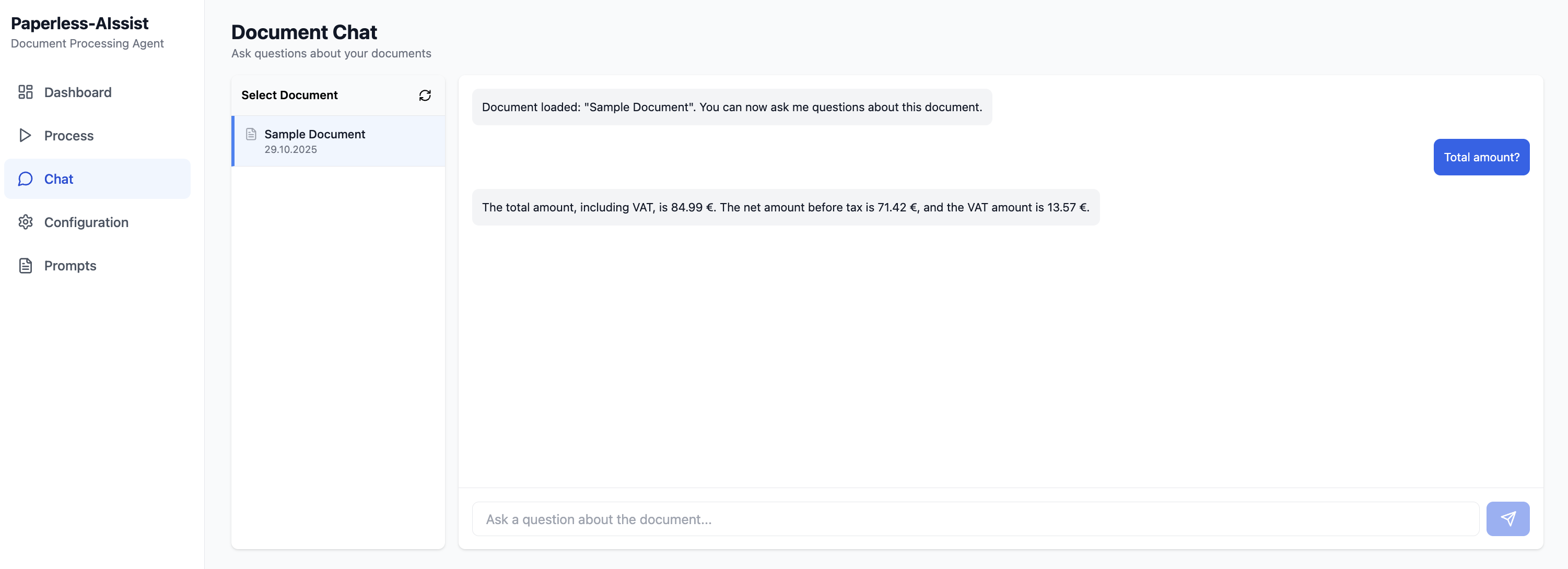
- **Document chat** — ask questions about any document via the web UI
- **Document search & preview** — search Paperless documents from the Chat page; preview what AI processing would do without modifying Paperless
- **Automation API** — trigger, stop, and check processing from cron, Home Assistant, or custom scripts
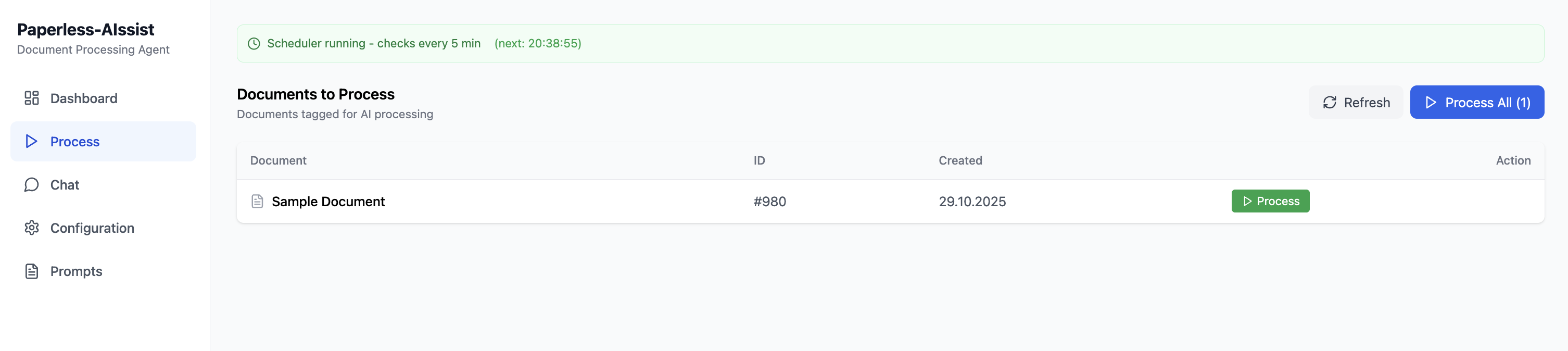
- **Auto-scheduler** — polls for new `ai-process` tagged documents on a configurable interval
- **Multilingual UI with dark mode** — web interface in English and German; another language is one more JSON file in `frontend/src/locales` (same keys as `en.json`); follows your system theme, with a light/dark switch in the header
- **Optional authentication** — protect the web UI with your Paperless-ngx credentials; disabled by default
## Screenshots
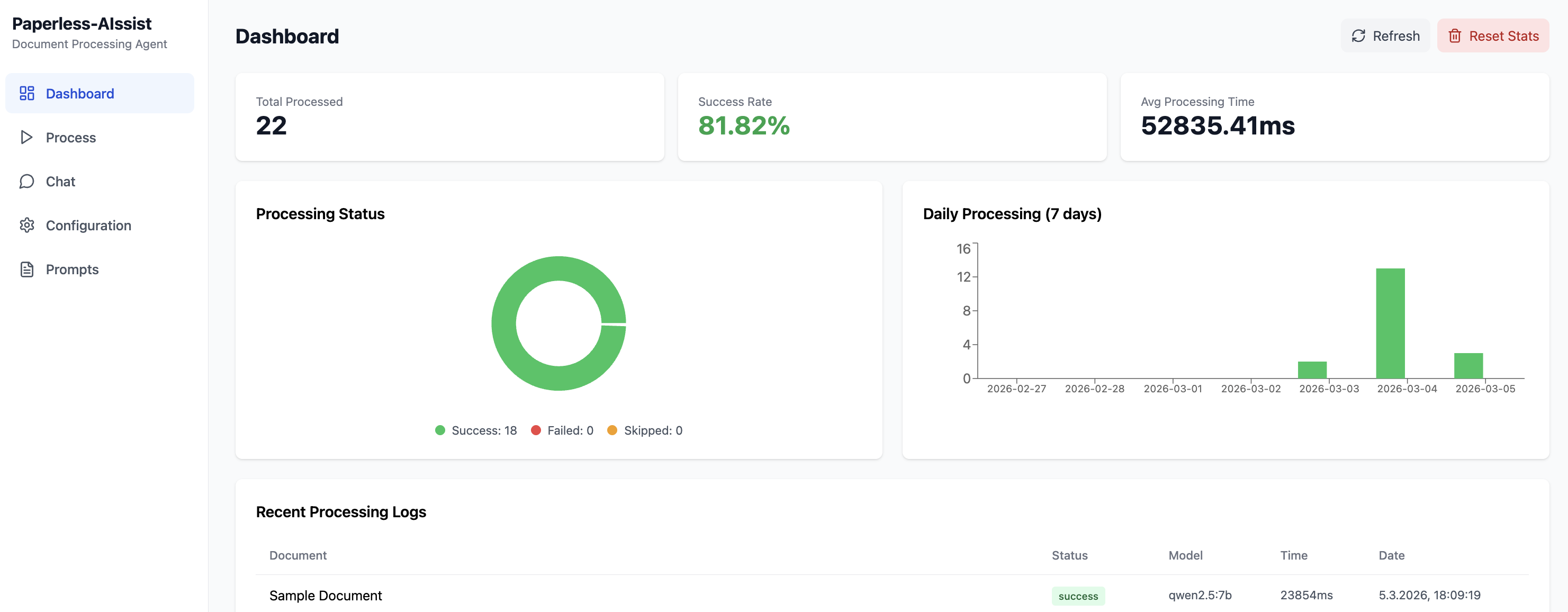
### Dashboard
### Process Queue
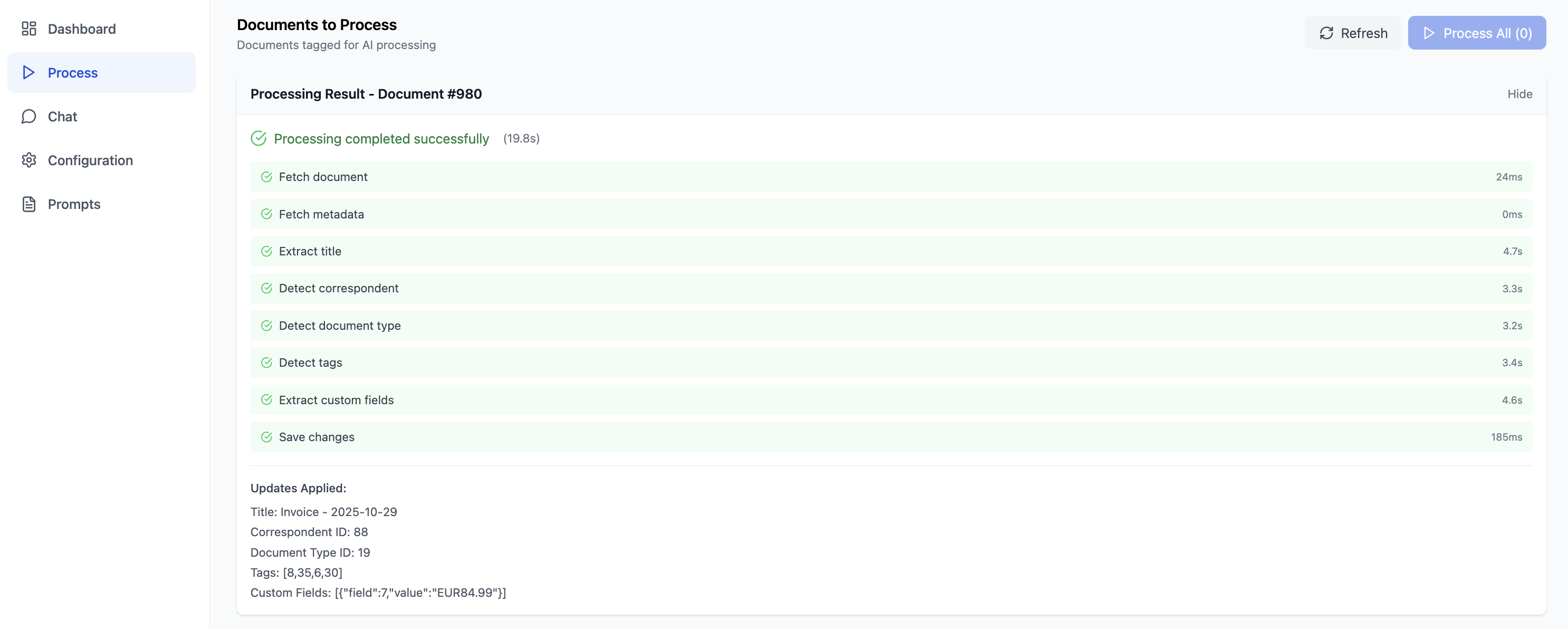
### Processing Result
### Chat
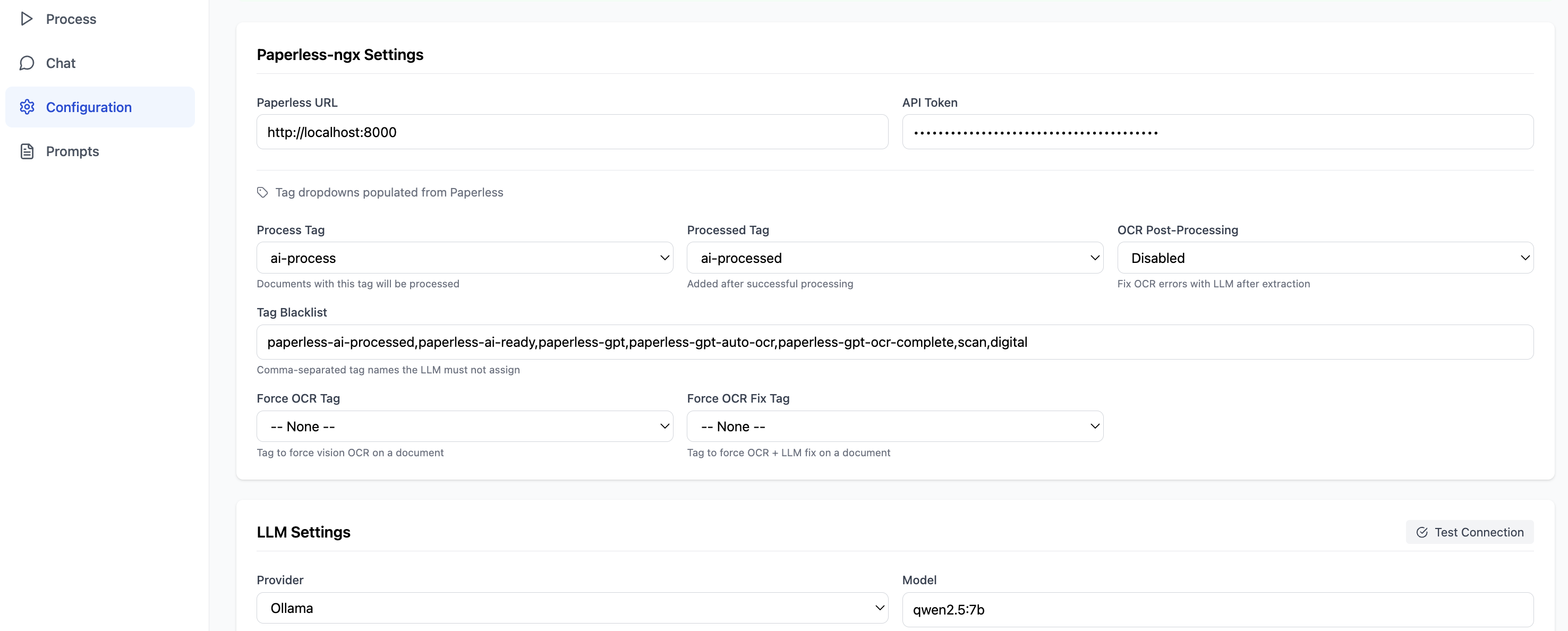
### Configuration
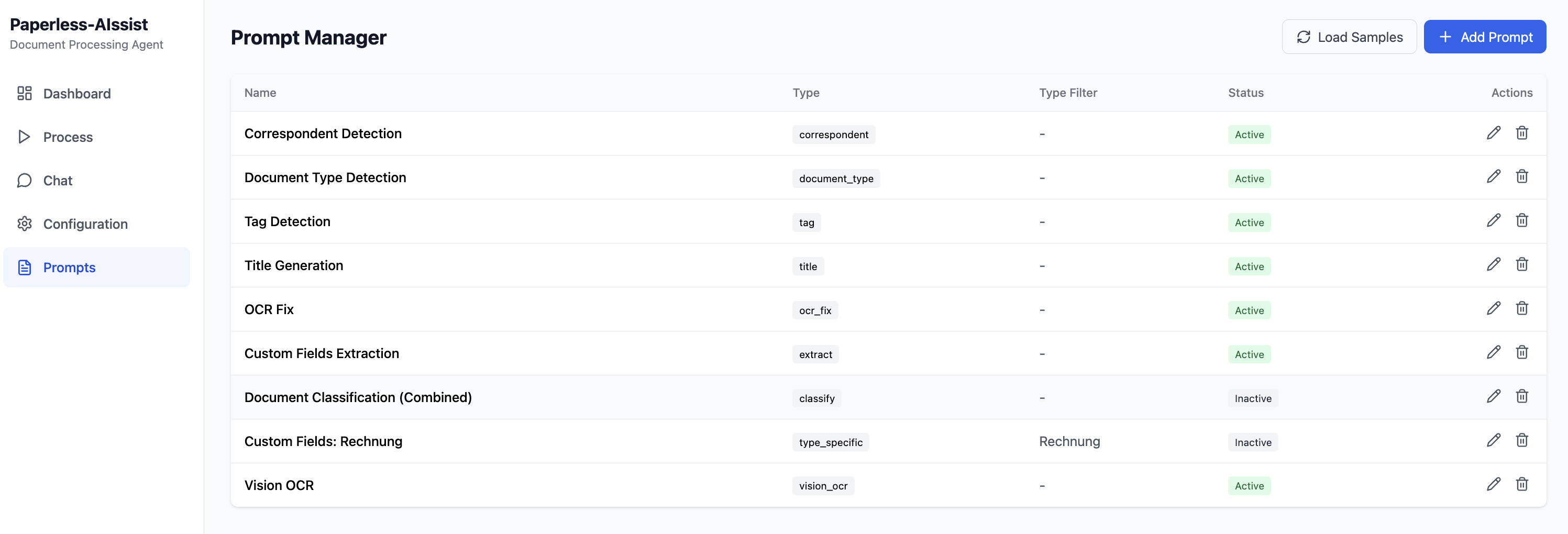
### Prompts
## Quick Start
### 1. Pull and run
```bash
docker run -d \
--name paperless-aissist \
-p 8000:8080 \
-e PUID=1000 \
-e PGID=1000 \
-v paperless-aissist-data:/app/data \
--restart unless-stopped \
nyxtronlab/paperless-aissist:latest
```
Open the web UI at **http://localhost:8000**
> The container runs application processes as a non-root user.
> Set `PUID` and `PGID` to match your host user/group (especially on Unraid).
### 2. Or use Docker Compose
```yaml
services:
paperless-aissist:
image: nyxtronlab/paperless-aissist:latest
container_name: paperless-aissist
ports:
- "8000:8080"
environment:
- PUID=1000
- PGID=1000
volumes:
- paperless-aissist-data:/app/data
restart: unless-stopped
volumes:
paperless-aissist-data:
```
> **Docker Desktop / Mac / Windows:** Use `host.docker.internal` to reach Ollama on the host.
> **Linux with host networking:** Use the host's LAN IP or `172.17.0.1`.
### 3. Configure in the web UI
1. Go to **Settings** and verify your Paperless and Ollama URLs
2. Set the LLM model (see recommendations below)
3. Create at minimum two tags in Paperless-ngx: `ai-process` and `ai-processed`. Optionally create modular step tags (see below) for per-step triggering. Before you turn on decision mode, also create the review tag `ai-review`.
4. Tag any document with `ai-process` for metadata processing using existing Paperless text. For Vision OCR plus metadata processing, add both `ai-ocr` and `ai-process`.
## Configuration
All settings are managed through the web UI and stored in SQLite. No environment variables needed — just mount a volume so your config persists across container restarts:
```yaml
volumes:
- paperless-aissist-data:/app/data
```
## LLM Providers
The provider is selected per-model in Settings. Ollama runs locally; OpenAI, Grok, and OpenRouter require an API key. The vision model can use a different provider than the main LLM — configure it separately via `llm_provider_vision` and `llm_api_key_vision` (e.g. main = Ollama, vision = OpenAI). Decision mode can also use a model or connection of its own (see Decision Mode below).
| Provider | API Base URL | Notes |
|----------|-------------|-------|
| Ollama | `http://localhost:11434` | Local — no API key needed |
| OpenAI | `https://api.openai.com/v1` | Requires API key |
| Grok (xAI) | `https://api.x.ai/v1` | Requires API key |
| OpenRouter | `https://openrouter.ai/api/v1` | Requires API key; use provider/model names |
> OpenAI-compatible endpoints (e.g. LM Studio, vLLM) also work — set the provider to `openai` and point the URL at your local server.
### Generation controls
The main LLM and Vision OCR model each have their own generation settings:
- **Temperature** controls randomness. Lower values are more deterministic; `0.0`–`0.3` is recommended for document metadata and OCR.
- **Max Output Tokens** optionally limits response length. Leave it empty to use the provider default. For Ollama, this is sent as `num_predict`; for OpenAI-compatible providers it is sent as `max_tokens`.
- **Context Window** is Ollama-only and maps to `num_ctx`. Increase it for large documents, many correspondents/tags, or long prompts. Left empty, Ollama uses its own default, often only 4,096 tokens and not the model's maximum, and cuts a longer prompt without an error. This is different from Max Output Tokens: `num_ctx` controls how much input context the model can see, while `num_predict` controls how long the answer may be.
## Automation API
External tools can control the same "Process all" workflow that is available in the web UI. This is useful for cron jobs, webhook tools, custom scripts, and [Home Assistant RESTful Command](https://www.home-assistant.io/integrations/rest_command/) automations.
Generate a dedicated token in **Settings → Advanced → Automation API**. The token is shown once and stored only as a hash.
Use the token as a bearer token:
```bash
curl -H "Authorization: Bearer paia_..." \
http://localhost:8000/api/automation/status
```
Available endpoints:
| Method | Endpoint | Purpose |
|--------|----------|---------|
| `GET` | `/api/automation/status` | Current processing state and last automation result |
| `POST` | `/api/automation/process/start` | Start processing tagged documents in the background |
| `POST` | `/api/automation/process/stop` | Request stop for an automation-owned processing run |
`start` is idempotent: if processing is already running, it returns `already_running` instead of starting a second run. The Automation API token is required even when web UI login is disabled.
The status response includes `is_processing`, `current_document_ids`,
`active_documents` with trigger tags, active step, and runtime. `last_result`
contains the last completed Automation API run and is `null` until the first
API-triggered run finishes. A run stopped by a missing review tag (see Decision
Mode below) ends with `success: false`, and the stopped document's entry in
`results` names the tag; for `ai-process` documents `last_result.stop` holds the
reason as well. Live progress while a run is active is reported via
`active_documents`.
Home Assistant example:
```yaml
rest_command:
paperless_aissist_process_all:
url: "http://paperless-aissist.local:8000/api/automation/process/start"
method: post
headers:
Authorization: "Bearer paia_your_token_here"
Content-Type: "application/json"
```
## Recommended Models
### Text (LLM)
| Provider | Model | Notes |
|----------|-------|-------|
| Ollama | `qwen3:8b` | Recommended local — fast, strong multilingual support |
| Ollama | `qwen2.5:7b` | Lighter option for slower hardware |
| OpenAI | `gpt-4o-mini` | Fast and cost-effective |
| Grok | `grok-3-mini` | xAI alternative |
| OpenRouter | `openai/gpt-4o-mini` | OpenRouter model namespace |
### Vision (OCR)
| Provider | Model | Notes |
|----------|-------|-------|
| Ollama | `benhaotang/Nanonets-OCR-s:latest` | Recommended local — best OCR accuracy |
| Ollama | `qwen2.5vl:7b` | Good text extraction |
| OpenAI | `gpt-4o` | Supports native PDF with the official OpenAI API |
| Grok | `grok-2-vision-1212` | xAI vision alternative |
| OpenRouter | `openai/gpt-4o` | Uses page images for portable vision input |
### Vision PDF input mode
For the official OpenAI API, Paperless-AIssist can send PDFs natively. For local OpenAI-compatible runtimes such as LM Studio, vLLM, llama.cpp, oMLX, or Ollama's OpenAI-compatible endpoint, use **Page images** so each PDF page is rendered locally and sent as an image input.
The default **Auto** mode uses native PDF for `api.openai.com` and page images for other OpenAI-compatible API bases.
Pull Ollama models before use:
```bash
ollama pull qwen3:8b
ollama pull benhaotang/Nanonets-OCR-s:latest
```
Ollama does not reject a prompt that is longer than its context window. It
keeps the end, drops the start with the instructions and the lists of
correspondents, types and tags, and answers anyway. Paperless-AIssist notices
this and marks the step with a note in the processing view, the chat preview
and the log. When you see it, or when Ollama returns `400 Bad Request` for large
documents, increase the **Context Window** setting in the web UI. It sends
Ollama `num_ctx` for text and Vision OCR requests and applies from the next
document on, without a restart.
## Processing Pipeline
Each document tagged with `ai-process` runs the standard metadata pipeline using the existing text from Paperless. Vision OCR is intentionally tag-controlled because it is slower and can be more expensive. Add `ai-ocr` when you want Paperless-AIssist to re-read the PDF with a vision model.
1. **Title** — generates a document title
2. **Classification** — detects correspondent, document type, and tags; in decision mode correspondent and document type are picked with a probability, and an unsure pick leaves the field for review
3. **Custom field extraction** — extracts structured data into Paperless custom fields
4. **Tag swap** — removes whichever trigger tag(s) were present, adds `ai-processed`, and in decision mode adds or removes the review tag
Classification only picks from what already exists in Paperless. If you switch on **Settings → Advanced → Create New Correspondents**, the correspondent step creates one when nothing matches, after a duplicate check against the server. Paperless gives a created correspondent to the API user, so in a multi-user setup nobody else sees it; **Owner of New Correspondents** lets you pick "Nobody" to make it visible to all users, and **Matching for New Correspondents** sets the Paperless matching algorithm on it. All three are off by default and only apply to correspondents created from then on.
## Modular Tag Workflows
Instead of running the full pipeline with `ai-process`, you can tag a document with one or more step-specific tags to run only those steps:
| Tag | Triggers |
|--------------------|----------------------|
| `ai-process` | Standard metadata pipeline using existing Paperless text |
| `ai-ocr` | Vision OCR only |
| `ai-ocr-fix` | OCR error correction only |
| `ai-date` | Document date detection and `created_date` update |
| `ai-title` | Title generation only |
| `ai-correspondent` | Correspondent classification only |
| `ai-document-type` | Document type classification only |
| `ai-tags` | Tag assignment only |
| `ai-fields` | Custom field extraction only |
Multiple step tags can be combined on a single document. All default tag names can be overridden in Settings.
Common combinations:
| Tags | Result |
|------|--------|
| `ai-ocr` + `ai-process` | Vision OCR first, then the standard metadata pipeline |
| `ai-ocr` + `ai-ocr-fix` | Vision OCR first, then OCR correction |
| `ai-ocr` + `ai-date` | Vision OCR first, then document date detection |
| `ai-ocr` + `ai-ocr-fix` + `ai-process` | Vision OCR, OCR correction, then the standard metadata pipeline |
OCR correction is guarded for long documents. If the document text is longer than **OCR Fix Max Chars**
(default `10000`), the `ai-ocr-fix` step is skipped and the original document text is kept. This
prevents a shortened LLM result from replacing full multi-page OCR output. The limit can be changed in
**Settings → Advanced** or with the optional `OCR_FIX_MAX_CHARS` environment variable.
Legacy override tags `force_ocr` and `force-ocr-fix` are still supported for compatibility. For new workflows, prefer `ai-ocr` and `ai-ocr-fix`.
> **Note on `ai-fields` + type-specific prompts:** When `ai-fields` runs without `ai-document-type`, the processor reads the document's current document type from Paperless and uses it to match any active `type_specific` prompts. You do not need to add `ai-document-type` just to get type-specific field extraction to work.
`ai-date` updates the Paperless document date (`created_date` concept). It does not change when the file was added to Paperless or imported. Low-confidence or ambiguous model results are logged but not written.
Documents tagged with any modular tag are picked up by the scheduler and the process queue alongside `ai-process` documents.
Up to **3 documents** are processed in parallel by default. The limit can be changed in **Settings → Advanced → Parallel Documents** — set it to `1` for sequential processing on low-power hardware, e.g. when a single machine runs both the vision and text models in Ollama. Each run logs the active limit.
## Decision Mode
Correspondent and document type can be decided from the Paperless lists with a probability per answer instead of a free-text reply. Each option gets a letter, the model answers with one letter, and AIssist reads how likely each letter was. Below a threshold (default 0.9) the field stays as it is and the document gets the review tag (default `ai-review`, create it in Paperless first). A confident "None of these" (at or above the threshold) leaves the field alone and adds the review tag as well. For the correspondent only, with **Create New Correspondents** on, the normal correspondent prompt names the sender instead and creates it through the usual checks; a name that already exists in Paperless goes to review. With it off, that prompt is still asked once for the sender, and the review note shows the name as a suggestion; nothing is created. A correspondent prompt that may only answer with names from the list never names a new sender, so its note stays without a suggestion. A later run that decides every field with decision mode on takes the review tag off again. A review note also names what else the model weighed, e.g. `Also considered: Rechnung 10.0%`.
Settings → LLM/Vision → Decision mode. Everything there takes effect from the next document. Each field also has its own question, default `Who sent this document (the correspondent)?` and `What type of document is this?`; the letter prompt receives it as `{question}`, and the Nimble and SystemOne formats send it as the field's description (the `<question>` below). The decision model can be the main model (leave the provider at **Same as main model**; only the model name may differ, e.g. `nimble` on the same Ollama) or its own connection. **Test decision model** sends a sample question and shows the answer with its probability, or why the text prompt would be used. The section also shows whether the review tag exists: while it is missing, a run stops at the first document that needs a decision, writes nothing to that document and says why on the Process page.
What works: Ollama (any instruct model via letters, `nimble` via its own format, `/v1/systemone` when selected), OpenAI (not the reasoning models), LM Studio and vLLM through the OpenAI setting, and the OpenRouter providers that return log-probabilities. Grok does not. Where it cannot work, the field falls back to the normal text prompt and the log says why. SystemOne is asked one question per request: with several questions in one request, the other options colour each answer (measured on Ollama 0.35).
Two list entries that mean the same thing, like a document type `Rechnung` next to `Invoice` or one sender under two spellings, cannot be told apart by probability: the model takes the one listed first, often with high confidence. Merge such duplicates in Paperless before you turn decision mode on.
The letter prompts are ordinary prompts on the Prompts page (`{content}`, `{question}`, `{options}`). Nimble's format is fixed: AIssist sends `{"context": …, "schema": [{"name": "field", "description": <question>, "choices": [{"code": "A", "value": <option>, "description": <option>}, …, {"code": …, "value": "None of these", "description": "The right answer is not in this list."}]}]}` plus `Requested field: "field"`, and Ollama adds the model's own system prompt. The processing log keeps each decision with its probability and the request (without the document text); the chat preview shows the full request.
Measured on 60 documents of a German archive through the app's own preview path with the English defaults, disputed cases blind-judged: correspondent 57/60 right with qwen2.5:7b (letters) and 58/60 with Nimble, document type 56/60 and 55/60. Nimble wrote no wrong correspondent at p ≥ 0.9; qwen2.5:7b did once (a product brand on a shop invoice), so with a 7B letters model keep the review tag on and expect the odd confident miss.
## Prompts
All processing steps are driven by configurable prompts managed in the **Prompts** page of the web UI.
### Prompt Types
| Type | Purpose |
|------|---------|
| `title` | Generates a document title |
| `correspondent` | Detects the correspondent from your Paperless list |
| `document_type` | Classifies the document type |
| `decision_correspondent` | Picks the correspondent by letter in decision mode (`{content}`, `{question}`, `{options}`) |
| `decision_document_type` | Picks the document type by letter in decision mode (`{content}`, `{question}`, `{options}`) |
| `tag` | Assigns tags from your Paperless list |
| `date` | Detects the original document date for Paperless `created_date` |
| `extract` | Extracts custom fields for all documents (expects JSON response) |
| `type_specific` | Extracts custom fields for one specific document type only |
| `ocr_fix` | Corrects OCR errors before classification |
| `vision_ocr` | System prompt sent to the vision model for OCR text extraction. Customise in the Prompts UI; seeded automatically from `examples/prompts/vision-ocr.json` |
| `classify` | Legacy combined classification — detects correspondent, type, and tags in a single LLM call |
### Classification Modes
**Individual mode** (recommended) — `correspondent`, `document_type`, and `tag` prompts run as separate steps. Use this for best accuracy.
**Combined mode** (legacy fallback) — a single `classify` prompt handles all three in one call. Only runs if none of the individual prompts are active.
### Custom Field Extraction
Both `extract` and `type_specific` can be active at the same time — their results are **merged**, with `type_specific` taking precedence on conflicts. This lets you define global fields via `extract` and add document-type-specific fields via `type_specific`.
The **Document Type Filter** on a `type_specific` prompt limits it to run only when the document is classified as that type. For example: `document_type_filter = Rechnung` runs the prompt only for invoices.
`type_specific` requires a known document type to decide whether to run. When the `document_type` prompt (or `classify`) is active, it uses the newly detected type. When running `ai-fields` alone, the processor falls back to the document's existing document type in Paperless — so type-specific extraction works without also adding `ai-document-type`.
Monetary fields are written the way Paperless stores them: `104,99 €` or `1.234,56 EUR` becomes `EUR104.99` or `EUR1234.56`, and a bare number takes the field's default currency. A value that is not exactly one readable amount (two numbers, words around it, or `1.679`, which could be a thousand or three decimals) is left out with a warning in the log, and the rest of the document is still written.
Prompts see every custom field defined in Paperless via `{custom_fields_list}`. Use `{document_custom_fields_list}` instead to offer only the fields already assigned to the document — useful when a Paperless workflow assigns fields per document type and the LLM should not fill anything else.
### Load Samples
Use the **Load Samples** button in the Prompts UI to add any missing built-in sample prompts. Existing prompts are not blindly overwritten during upgrades: unchanged sample prompts can be updated automatically, while edited, legacy, and custom prompts are preserved. The Prompt Manager shows each prompt's sample status, and a single prompt can be replaced manually with its bundled sample from the edit dialog.
## Authentication
By default the web UI is open — no login required. You can restrict access to users with a valid Paperless-ngx account.
### Enable auth
Set `auth_enabled` to `true` in **Settings → Advanced** (or via the `AUTH_ENABLED=true` environment variable).
Once enabled, the UI redirects unauthenticated users to a login page. Sign in with the same username/password you use to log into Paperless-ngx.
### How it works
- Login proxies credentials to Paperless-ngx (`POST /api/token/`) and returns a session token
- The token is stored in `localStorage` and sent as a `Bearer` header on every API request
- The backend verifies tokens against Paperless on first use, then caches them for 5 minutes
- Logout invalidates the cached token on the backend and clears `localStorage`
- If Paperless becomes temporarily unreachable, a previously verified token continues to work until the cache expires
### API endpoints
| Endpoint | Description |
|----------|-------------|
| `GET /api/auth/status` | Returns `{"auth_enabled": true/false}` |
| `POST /api/auth/login` | Exchange Paperless credentials for a token |
| `GET /api/auth/me` | Returns the authenticated user info |
| `POST /api/auth/logout` | Invalidates the token in the server cache |
## MCP (Model Context Protocol)
Paperless-AIssist exposes an MCP server so you can control document processing directly from Claude Desktop or any other MCP-compatible client.
### Enable the MCP server
Enable it in **Settings → Advanced → MCP Server** — it takes effect immediately, no restart needed. The server is off by default. You can also set the `MCP_ENABLED=true` environment variable as a fallback.
Once enabled, the MCP endpoint is available at `/mcp/` (note the trailing slash) on the same port as the web UI. It uses the [streamable HTTP transport](https://modelcontextprotocol.io/specification/2025-03-26/basic/transports#streamable-http), so a persistent connection is not required.
### Authentication
All MCP requests must carry a valid Automation API token in the `Authorization` header. Generate a `paia_` token in **Settings → Advanced → Automation API** — the same token used for the REST Automation API.
### Available tools
| Tool | What it does |
|------|-------------|
| `list_pending` | List documents currently tagged for AI processing |
| `list_prompts` | List all configured prompts |
| `get_prompt` | Get the content of a specific prompt by name |
| `get_status` | Get the current processing status and last run result |
| `preview_processing` | Preview what AI processing would do to a document without modifying Paperless |
| `process_document` | Trigger processing for a single document |
| `process_all` | Start processing all pending tagged documents |
| `stop_processing` | Request a stop for the current processing run |
| `test_prompt` | Test a prompt against a document without writing any results |
### Claude Desktop configuration
Add the following to your `claude_desktop_config.json`:
```json
{
"mcpServers": {
"paperless-aissist": {
"url": "http://paperless-aissist.local:8000/mcp/",
"headers": { "Authorization": "Bearer paia_your_token_here" }
}
}
}
```
Replace `paperless-aissist.local:8000` with the hostname and port where Paperless-AIssist is reachable from your desktop.
### opencode
Add the server to your `opencode.json`. Because it authenticates with a bearer token rather than OAuth, set `oauth` to `false`:
```json
{
"$schema": "https://opencode.ai/config.json",
"mcp": {
"paperless-aissist": {
"type": "remote",
"url": "http://paperless-aissist.local:8000/mcp/",
"oauth": false,
"headers": {
"Authorization": "Bearer paia_your_token_here"
}
}
}
}
```
opencode supports `{env:VAR}` interpolation in headers, so you can keep the token out of the file — for example `"Authorization": "Bearer {env:PAPERLESS_AISSIST_TOKEN}"`.
Any MCP client that supports remote streamable-HTTP servers with custom headers can connect the same way — point it at `/mcp/` and send the `paia_` token as a `Bearer` `Authorization` header.
## Architecture
- **Backend:** Python / FastAPI — processing pipeline, Ollama/OpenAI/Grok client, Paperless API client, APScheduler
- **Frontend:** React 18 / TypeScript / Tailwind CSS
- **Database:** SQLite (config, prompts, processing logs)
- **Runtime:** nginx + uvicorn via supervisord in a single container
## Comparison with Similar Projects
Paperless-AIssist is not a replacement for Paperless-ngx. It is a small AI
middleware that sits beside Paperless-ngx and adds tag-controlled processing,
prompt management, Vision OCR, custom field extraction, chat, logs, and an
Automation API.
Think of it as the flexible toolbox approach: modular tags, prompt control,
separate text and vision models, type-specific extraction, and an Automation API
let you build exactly the workflow you want around Paperless-ngx.
This comparison is meant as a practical orientation, not as a ranking. The
related projects make different trade-offs and may be the better fit depending
on your workflow.
| Project | Main role | Strong fit | Notes |
|---------|-----------|------------|-------|
| **Paperless-AIssist** | AI middleware for Paperless-ngx | Modular tag workflows, configurable prompts, Vision OCR, separate text/vision models, type-specific custom fields, Automation API, local/cloud hybrid setups | Designed for users who want explicit control over what runs and when |
| [**Paperless-ngx**](https://github.com/paperless-ngx/paperless-ngx) | Core document management system | Stable archive, ingestion, OCR, search, workflows, permissions, official API | Paperless-ngx `v3.0.0-beta.rc1` adds native Paperless AI and Remote OCR (Azure AI), so some AI use cases may become built-in |
| [**paperless-ai-next**](https://github.com/admonstrator/paperless-ai-next) | Next-generation Paperless-AI fork | Automated AI classification, OCR rescue workflows, history/rescan flows, performance improvements for larger setups | Good fit if you want a more automated Paperless-AI-style assistant with less step-by-step control |
| [**Paperless-AI**](https://github.com/clusterzx/paperless-ai) | AI extension with automation and RAG chat | Automatic document classification, tagging, titles, rules, semantic document chat | The upstream README currently notes that the original project is not actively maintained while a rewrite is considered |
| [**paperless-gpt**](https://github.com/icereed/paperless-gpt) | OCR and AI enhancement companion | LLM-based OCR, OCR providers, searchable/selectable PDFs, title/tag/correspondent/custom field suggestions, manual review | Strong choice when OCR quality and PDF text-layer workflows are the primary problem |
### When Paperless-AIssist Fits Best
Choose Paperless-AIssist if you want:
- Tag-controlled processing: run the full pipeline with `ai-process`, Vision OCR with `ai-ocr`, or only specific steps such as `ai-title`, `ai-date`, or `ai-fields`.
- A web UI for configuration and prompts instead of editing environment variables for normal day-to-day changes.
- Separate text and Vision OCR model/provider settings, for example local Ollama for metadata and OpenAI/OpenRouter/Grok for selected OCR jobs.
- Type-specific custom field extraction where different document types can use different prompts.
- A lightweight Automation API for cron, Home Assistant, or custom scripts.
- Explicit opt-in Vision OCR so expensive or slow OCR calls only run when tagged.
### When Another Tool May Fit Better
- Use native **Paperless-ngx** AI features if you prefer everything inside the
main Paperless-ngx application and do not need external middleware.
- Use **paperless-ai-next** if you want a more automatic AI assistant with
Paperless-AI-style workflows, OCR rescue queues, and operational polish.
- Use **Paperless-AI** if you already rely on its RAG/chat workflow and it works
well in your setup.
- Use **paperless-gpt** if your main goal is high-quality OCR enhancement,
searchable PDF generation, and reviewable OCR/metadata suggestions.
Feedback, issues & PRs are very welcome.
## License
MIT
连接信息
猜你喜欢
暂无推荐服务器